Consentra: App Consent Permissions endlich im Griff
App Consent – der blinde Fleck in vielen Entra-Umgebungen
Jeder kennt Conditional Access, MFA und Privileged Identity Management. Aber wer hat tatsächlich im Griff, welche OAuth-Apps in seinem Tenant Zugriff auf Mailboxen, Kalender oder OneDrive-Daten haben?
Die meisten Antworten lauten: Niemand so richtig.
Das ist kein Vorwurf – sondern ein strukturelles Problem. Das Entra ID Portal zeigt Enterprise Applications in einer Liste. Es gibt Filter, man kann einzelne Apps aufrufen. Aber einen konsolidierten Überblick, wer was wem gewährt hat, und vor allem: was davon legitim ist – den gibt es dort nicht.
Illicit Consent Grant ist seit Jahren ein bevorzugter Angriffsweg. Ein User wird auf eine gefälschte App-Consent-Seite gelockt, klickt auf “Akzeptieren” – und die Angreifer-App hat danach dauerhaften, MFA-bypassing Zugriff auf Mailbox und Daten. Kein gestohlenes Passwort nötig.
Was oft vergessen wird
User Consent ist standardmäßig erlaubt. In vielen Tenants können Benutzer OAuth-Apps selbst Berechtigungen erteilen – ohne Admin-Genehmigung. Das betrifft “Low Risk”-Permissions, die Microsoft als unbedenklich klassifiziert. In der Praxis ist das oft breiter als erwartet.
Permissions häufen sich über Zeit an. Apps werden deployed, getestet, wieder vergessen – aber die Consent Grants bleiben. Nach zwei Jahren hat man eine Sammlung von Apps mit Graph-Zugriffen, von denen niemand mehr weiß, ob sie noch aktiv genutzt werden.
offline_access bedeutet dauerhaft. Diese Permission erlaubt es einer App, Refresh Tokens auszustellen und damit auch ohne aktive User-Session dauerhaft auf Ressourcen zuzugreifen. Wird selten bewusst wahrgenommen.
Consentra
Consentra ist ein kostenloses Tool, das genau diese Lücke schließt. Es verbindet sich read-only mit dem eigenen Entra ID Tenant, liest alle Service Principals, Consent Grants und Permissions aus – und baut daraus einen strukturierten, filterbaren Report.
Das Besondere: Alles läuft im Browser. Keine Daten verlassen die lokale Umgebung, kein Backend, keine Kosten.
Features im Überblick
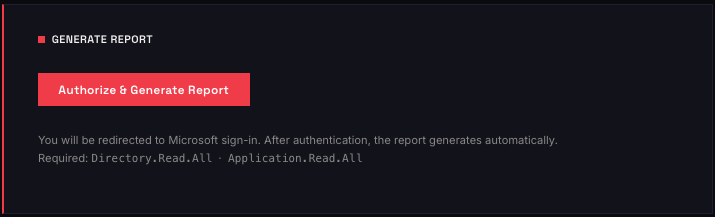
Consent Grant starten
Nach dem Login mit einem Entra ID Account wird der Tenant analysiert. Der initiale Consent Grant erlaubt Consentra den Zugriff auf die nötigen Graph-Berechtigungen.
Report generieren
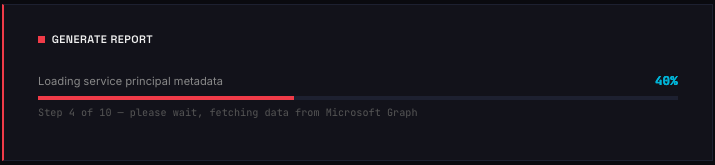
Consentra liest alle Service Principals und deren Permissions aus dem Tenant. Je nach Tenant-Größe dauert das einige Sekunden bis Minuten.
Summary Overview
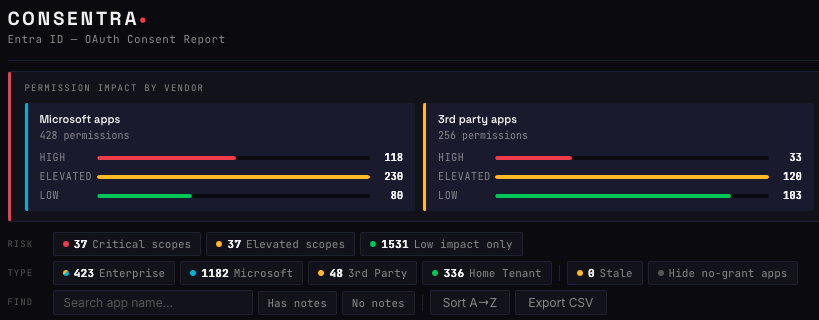
Die Hauptansicht zeigt alle Apps mit ihren Berechtigungen in einer Übersichtstabelle: App-Name, Publisher, Permissions-Typ (Application vs. Delegated), zugewiesene Scopes und ob User-Consent oder Admin-Consent vorliegt.
Filter nach Permission Scopes
Gezielt nach kritischen Scopes filtern – z.B. Mail.Read, Files.ReadWrite.All, offline_access. So sieht man sofort, welche Apps weitreichende Zugriffsrechte haben.

Filter nach User Consent
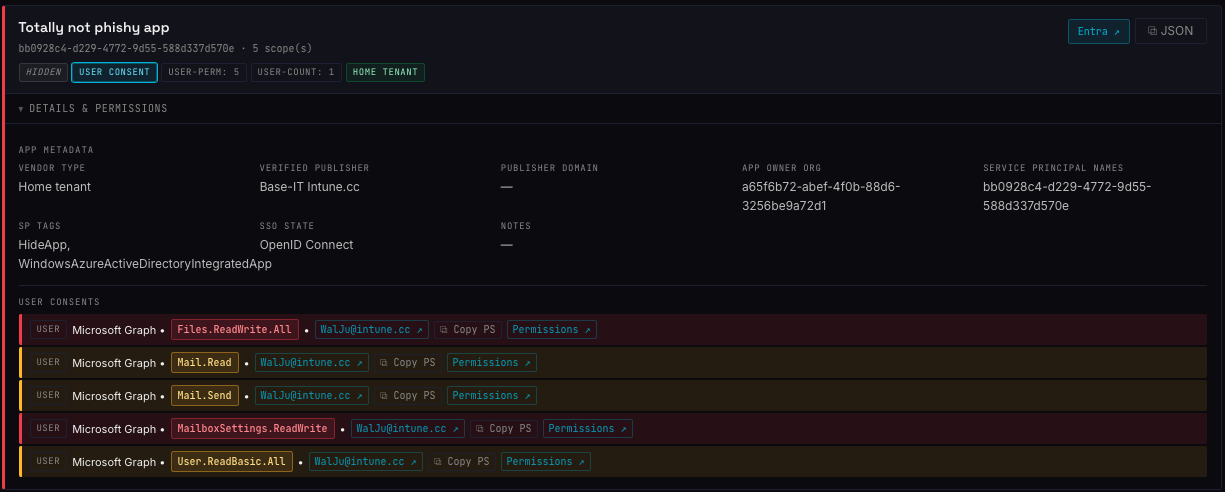
Nur Apps anzeigen, denen Benutzer Berechtigungen erteilt haben. Das ist der kritischste Bereich für Illicit Consent Grant Angriffe.
User Assignment entfernen
Direkt aus dem Report heraus lässt sich das User Assignment für eine App entfernen.
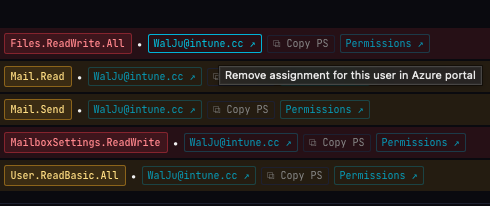
PowerShell für Consent Removal kopieren
Für das vollständige Entfernen von Consent Grants generiert Consentra fertige PowerShell-Commands, die man direkt in die Shell kopieren kann.
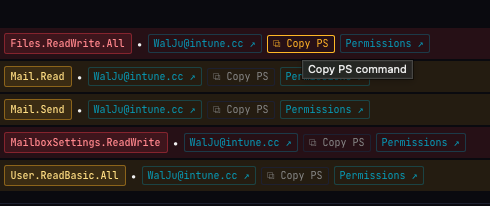
Beispiel:
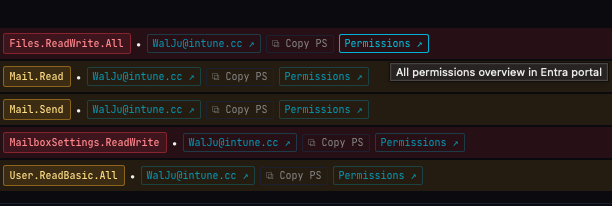
Remove-MgOauth2PermissionGrant -OAuth2PermissionGrantId 'uEI_7sBdpEyQT5Ze66jbg2OJJtdh-tZBkl5vCJ1s48C2LGjSLAzjQ685ZlFUDwHC'Link zur Permission-Übersicht
Direktlink aus Consentra in das Entra ID Admin Center zur jeweiligen App – für weitere Konfiguration oder manuelle Prüfung.
Filter Notes
In den Notes der App Registration zu hinterlegen, wer der Business Owner dieser App ist oder auch andere wichtige Informationen zu dieser App zu pflegen, ist eine Empfehlung die immer wieder ausgesprochen wird. Mit Consentra lässt sich ganz einfach filtern, bei welchen Apps noch keine Notes hinterlegt sind.

Fazit
Consentra macht in wenigen Minuten sichtbar, was in vielen Tenants jahrelang im Verborgenen gewachsen ist. Besonders für Security Reviews, Incident Response und regelmäßige Hygiene-Checks ist das Tool ein klarer Gewinn – und das ohne Installation und ohne Kosten.
Wer seinen Tenant noch nie aus dieser Perspektive betrachtet hat, wird beim ersten Report wahrscheinlich einige Überraschungen erleben.
App Consent – the Blind Spot in Many Entra Environments
Everyone knows Conditional Access, MFA, and Privileged Identity Management. But who actually has control over which OAuth apps in their tenant have access to mailboxes, calendars, or OneDrive data?
Most honest answers: nobody really does.
That’s not a criticism — it’s a structural problem. The Entra ID portal shows Enterprise Applications in a list. There are filters, you can open individual apps. But a consolidated view of who granted what to whom, and most importantly: what’s actually legitimate — that doesn’t exist there.
Illicit Consent Grant has been a preferred attack path for years. A user gets lured to a fake app consent page, clicks “Accept” — and the attacker’s app gains persistent, MFA-bypassing access to the mailbox and data. No stolen password required.
What’s Often Overlooked
User consent is enabled by default. In many tenants, users can grant OAuth apps permissions on their own — without admin approval. This covers “Low Risk” permissions that Microsoft classifies as harmless. In practice, that scope is often broader than expected.
Permissions accumulate over time. Apps get deployed, tested, forgotten — but the consent grants remain. After two years you’ve got a collection of apps with Graph access that nobody can confirm are still actively used.
offline_access means permanent. This permission allows an app to issue refresh tokens and thereby access resources indefinitely — even without an active user session. Rarely noticed consciously.
Consentra
Consentra is a free tool that closes exactly this gap. It connects read-only to your own Entra ID tenant, reads all service principals, consent grants, and permissions — and turns that into a structured, filterable report.
What makes it special: everything runs in the browser. No data leaves the local environment, no backend, no costs.
Features at a Glance
Initiate Consent Grant
After logging in with an Entra ID account, the tenant is analyzed. The initial consent grant allows Consentra access to the required Graph permissions.
Generate Report
Consentra reads all service principals and their permissions from the tenant. Depending on tenant size, this takes a few seconds to a few minutes.
Summary Overview
The main view shows all apps with their permissions in an overview table: app name, publisher, permissions type (Application vs. Delegated), assigned scopes, and whether user consent or admin consent is present.
Filter by Permission Scopes
Filter specifically for critical scopes — e.g. Mail.Read, Files.ReadWrite.All, offline_access. This immediately shows which apps have broad access rights.
Filter by User Consent
Show only apps that users have granted permissions to. This is the most critical area for illicit consent grant attacks.
Remove User Assignment
User assignment for an app can be removed directly from within the report.
Copy PowerShell for Consent Removal
For fully removing consent grants, Consentra generates ready-to-use PowerShell commands that can be pasted directly into the shell.
Example:
Remove-MgOauth2PermissionGrant -OAuth2PermissionGrantId 'uEI_7sBdpEyQT5Ze66jbg2OJJtdh-tZBkl5vCJ1s48C2LGjSLAzjQ685ZlFUDwHC'Link to Permission Overview
Direct link from Consentra into the Entra ID Admin Center for the respective app — for further configuration or manual review.
Filter Notes
Documenting the business owner of an app — or other important information — in the Notes of an App Registration is a recommendation that comes up repeatedly. With Consentra, it’s easy to filter for apps that don’t yet have notes entered.
Conclusion
Consentra makes visible in just a few minutes what has been quietly growing in many tenants for years. Especially for security reviews, incident response, and regular hygiene checks, the tool is a clear win — with no installation and no costs.
Anyone who has never looked at their tenant from this angle will likely encounter a few surprises on the first report.