Entra Internet Access: Explicit Forward Proxy jetzt in Public Preview
Entra Internet Access ohne GSA-Agent - Explicit Forward Proxy in Public Preview
Bis heute war Entra Internet Access (EIA) an eine Voraussetzung geknüpft: Der Global Secure Access (GSA) Client muss auf dem Endgerät installiert sein. Das war der klassische Agent-basierte Ansatz, wie man ihn von anderen ZTNA-Lösungen (Zero Trust Network Access) kennt - sinnvoll für verwaltete Geräte, aber für Szenarien mit nicht-verwalteten oder Server-Workloads nur begrenzt einsetzbar.
Ab heute ist das anders. Microsoft hat den Explicit Forward Proxy (EFP) für Entra Internet Access in die Public Preview gebracht - und damit eine agentlose Alternative geschaffen.
Das Konzept: Proxy statt Agent
Das Prinzip ist nicht neu. Palo Alto Prisma Access, Zscaler Internet Access und andere Cloud-Proxy-Lösungen bieten seit Jahren genau das: Einen Proxy-Endpunkt, auf den Geräte oder Firewalls ihren Traffic forwarden, ohne dass ein Client-Agent notwendig ist. Die Konfiguration erfolgt über ein PAC-File (Proxy Auto-Configuration), das an den Browser oder das Betriebssystem ausgeliefert wird.
Microsoft implementiert dasselbe Modell jetzt in EIA. Der Unterschied zu anderen Anbietern liegt vor allem in der nativen Entra ID-Integration - Conditional Access, Benutzeridentität und bereits bestehenden Entra Internet Access - Security Profiles sind nativ eingebunden.
Technischer Ablauf:
- Gerät oder Browser lädt das von Microsoft bereitgestellte PAC-File
- Definierter Traffic wird an den EFP-Endpunkt des EIA Services (https://TENANTID.internet.efp.globalsecureaccess.microsoft.com) weitergeleitet
- EFP terminiert die Verbindung und baut sie im Namen des Clients neu auf
- TLS-Inspektion analysiert den entschlüsselten Traffic anhand der konfigurierten EIA-Policies
- Verbindung wird weitergeleitet oder geblockt
EFP benötigt zwingend TLS-Inspektion. Ohne aktivierte TLS-Inspektion in EIA funktioniert der Explicit Forward Proxy nicht - Microsoft kann verschlüsselten Traffic sonst nicht gegen die Web-Content-Filter-Policies auswerten.
Konfiguration: Schritt für Schritt
1. TLS-Inspektion einrichten
TLS-Inspektion ist die technische Grundvoraussetzung. EIA muss in der Lage sein, HTTPS-Verbindungen aufzubrechen und zu inspizieren. Dafür wird ein Root-CA-Zertifikat benötigt, das dem EFP-Dienst erlaubt, On-the-fly-Zertifikate für besuchte Domains auszustellen.
Der erste Schritt ist das Erstellen eines CSR (Certificate Signing Request) direkt in der EIA-Konfiguration:
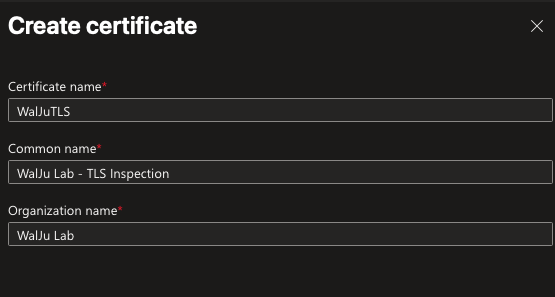
Den generierten CSR signiert man anschließend mit der eigenen CA. In diesem Beispiel wird eine ADCS PKI verwendet - aber natürlich ist auch jede andere PKI möglich (wie das Zertifikatstemplate konfiguriert werden werden muss, am Besten direkt im MS Learn Artikel nachlesen):
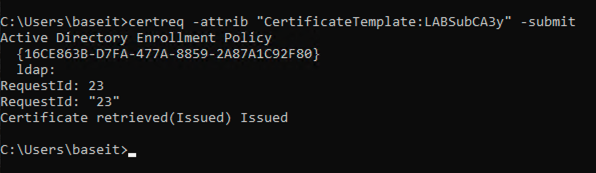
Das signierte Zertifikat + Certificate Chain wird anschließend in EIA hochgeladen:
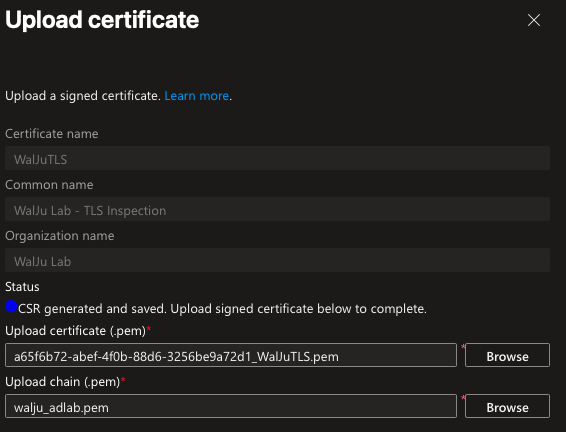
Danach wird TLS-Inspektion aktiviert:
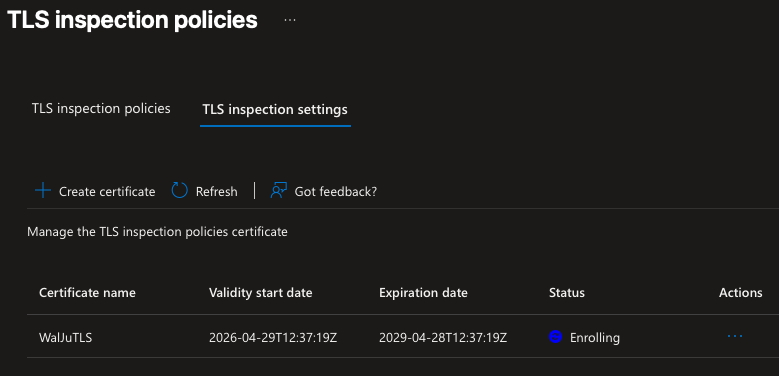
Nach erfolgreicher Aktivierung zeigt das Portal den Status als aktiviert:
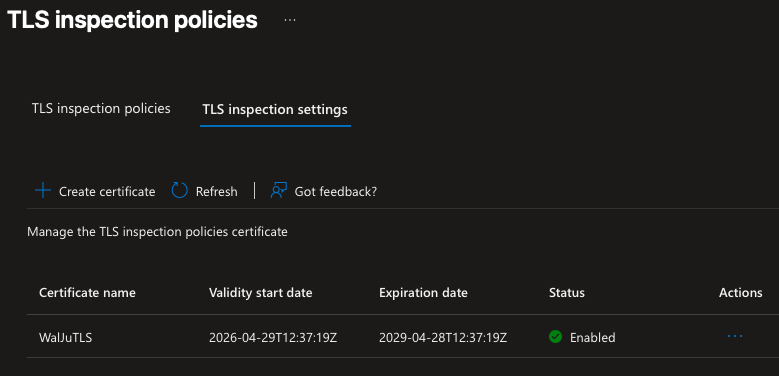
Das für TLS-Inspektion verwendete Zertifikat muss auf den Clients als vertrauenswürdig eingestuft sein. Entweder über Group Policy (für AD-joined Geräte) oder über Intune Certificate Profile (für Entra-joined/hybrid Geräte). Ohne Trust auf dem Client schlägt jede HTTPS-Verbindung über den EFP mit einem Zertifikatsfehler fehl.
2. PAC-File konfigurieren und URL abrufen
Nach Aktivierung der TLS-Inspektion steht in EIA die PAC-File-Konfiguration bereit. Hier wird der EFP-Proxypunkt definiert und eine eindeutige PAC-File-URL generiert:
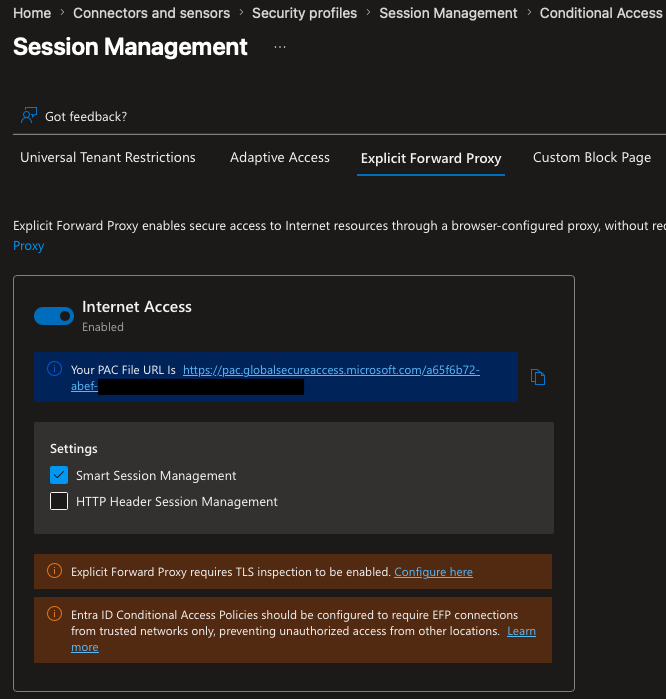
Die Konfiguration des PAC-Files selbst - also welche URLs oder Domains über den EFP geleitet werden und was direkt bleibt - erfolgt in den EIA-Traffic-Forwarding-Profilen:
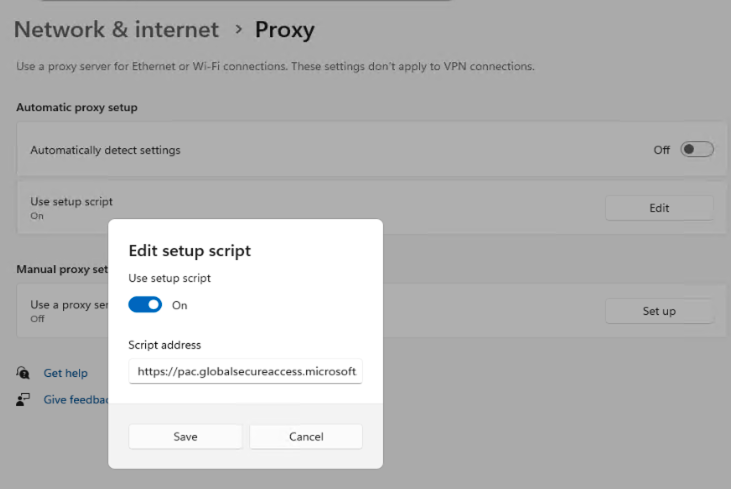
Die PAC-File-URL wird anschließend per GPO (Computer Configuration → Administrative Templates → Windows Components → Internet Explorer → Automatic Browser Configuration) oder Intune Device Configuration Profile an die Clients ausgeliefert. In dieser Demo wurde die PAC File URL direkt in den Proxy Settings des Win11 konfiguriert.
3. Funktion verifizieren
Sobald ein Client das PAC-File lädt und Traffic über den EFP routed, lässt sich die Verbindung auf mehreren Ebenen verifizieren.
Ausgehende IP: Der Traffic erscheint auf Ziel-Webservern mit einer Microsoft SSE-IP:
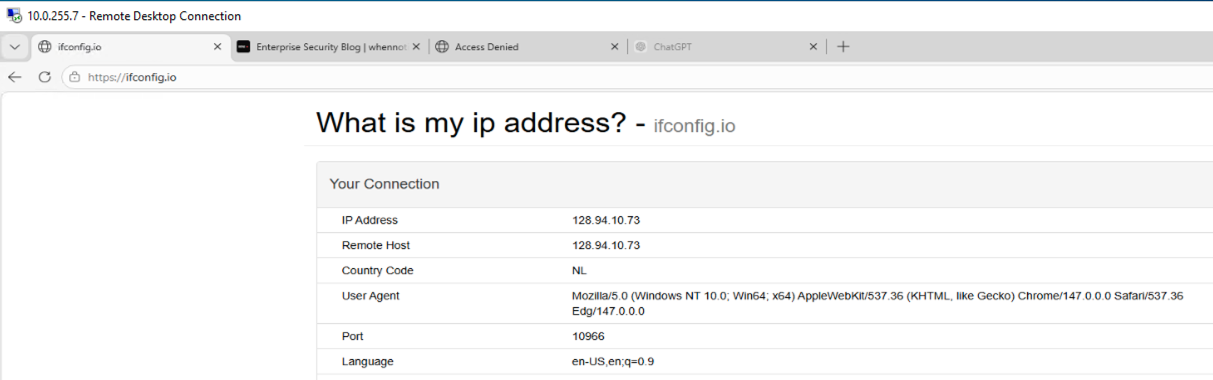
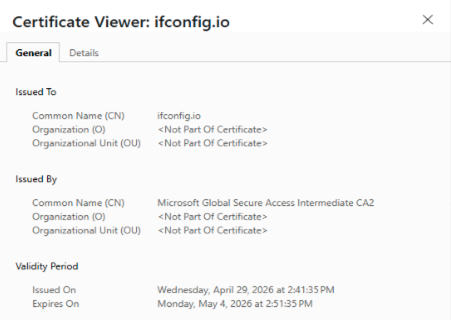
TLS-Zertifikat: Der Browser zeigt das von EIA dynamisch ausgestellte Zertifikat für die besuchte Domain - ausgestellt von einer Microsoft SubCA, welche technisch unter der konfigurierten eigenen SubCA hängt, die für TLS-Inspektion konfiguriert wurde:
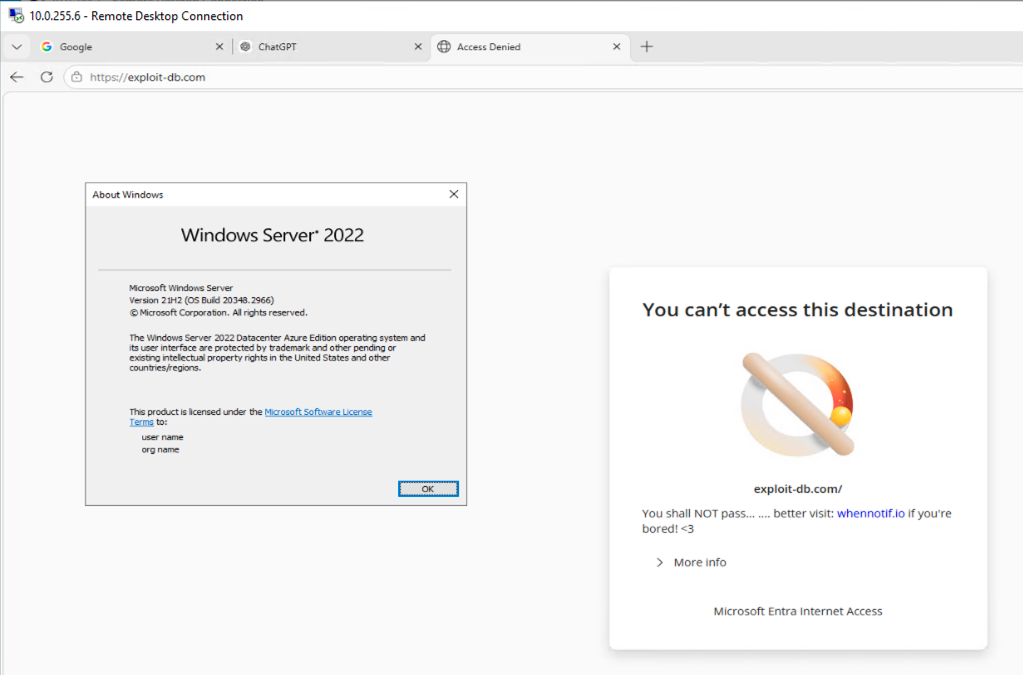
EIA auf Server-Workloads: Da kein Agent erforderlich ist, funktioniert EFP auch auf Windows Server - hier der Nachweis mit Internet Explorer auf einem Server-System:
4. Blocking in Aktion
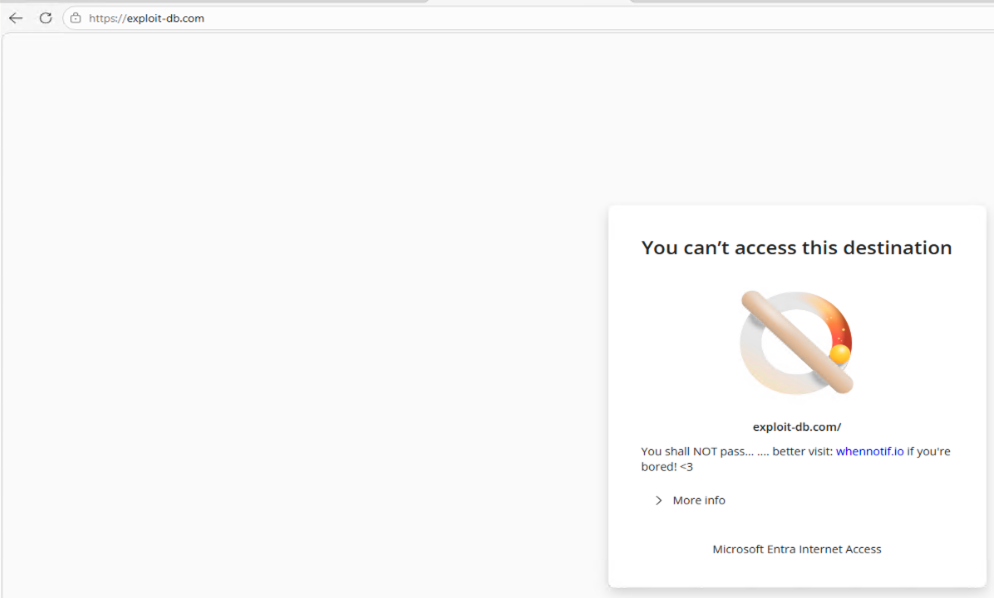
EIA Web Content Filtering blockiert Traffic gemäß der konfigurierten Policy - der Endbenutzer sieht eine entsprechende Blockseite:
PAC-File in Enterprise-Umgebungen
Das PAC-File (Proxy Auto-Configuration) ist plain JavaScript mit einer einzigen exportierten Funktion: FindProxyForURL(url, host). Sie gibt zurück ob eine Verbindung direkt geht (DIRECT) oder über welchen Proxy sie geroutet wird (PROXY host:port). Das von Microsoft bereitgestellte PAC-File kann als Ausgangsbasis herangezogen und für unternehmenssspezifische Anforderungen erweitert werden.
Relevante PAC-Funktionen für Traffic-Steuerung:
| Funktion | Verwendung |
|---|---|
myIpAddress() | Gibt die IP des anfragenden Clients zurück - ermöglicht subnetz-basiertes Routing |
isInNet(ip, subnet, mask) | Prüft ob eine IP in einem Netzbereich liegt |
dnsDomainIs(host, domain) | Matched Hosts auf Basis der Domain |
shExpMatch(host, pattern) | Wildcard-Matching auf Hostnamen |
isPlainHostName(host) | Erkennt interne Kurznamen ohne Domainanteil |
Typische Enterprise-Erweiterungen:
function FindProxyForURL(url, host) {
  // Interne Ziele direkt
  if (isInNet(dnsResolve(host), "10.0.0.0", "255.0.0.0")) return "DIRECT";
  if (isPlainHostName(host)) return "DIRECT";

  // Subnetz-basierte Differenzierung:
  // Server-VLAN (10.10.0.0/24) → kein Proxy für bestimmte Ziele
  if (isInNet(myIpAddress(), "10.10.0.0", "255.255.255.0")) return "DIRECT";

  // Alles andere → EFP
  return "PROXY efp.globalsecureaccess.microsoft.com:8080";
}
Self-Hosting für Zugriffskontrolle: Wer die PAC-File-URL von Microsoft intern hostet (IIS, nginx, Azure Static Web App), kann den Zugriff auf das PAC-File selbst über IP-ACLs einschränken. Nur Clients aus autorisierten Subnetzen bekommen das File ausgeliefert - alle anderen landen auf einem DIRECT-Fallback oder erhalten gar keine Antwort. Das verhindert, dass nicht autorisierte Geräte den EFP-Endpunkt missbräuchlich nutzen, ohne dafür auf dem EFP selbst komplexe Zugangslisten pflegen zu müssen.
User-basierte Authentifizierung
Die initial angekündigte Einschränkung - ein einziges Baseline-Profil für alle EFP-Verbindungen - ist nun aufgelöst. User-basierte Authentifizierung ist ab sofort konfigurierbar und macht EFP zum vollständigen identitätsbewussten Proxy.
Funktionsprinzip: Wenn ein Browser einen CONNECT-Request an den EFP schickt, prüft dieser auf eine vorhandene Entra ID-Session. Ist keine vorhanden, leitet der EFP den Browser zu einer Entra ID-Authentifizierung um. Nach erfolgreicher Anmeldung wertet EIA die Conditional Access Policy Assignments des Users aus und bestimmt welches Security Profile gilt - und damit welcher Traffic erlaubt oder geblockt wird.
Konfiguration: EIA Security Profiles
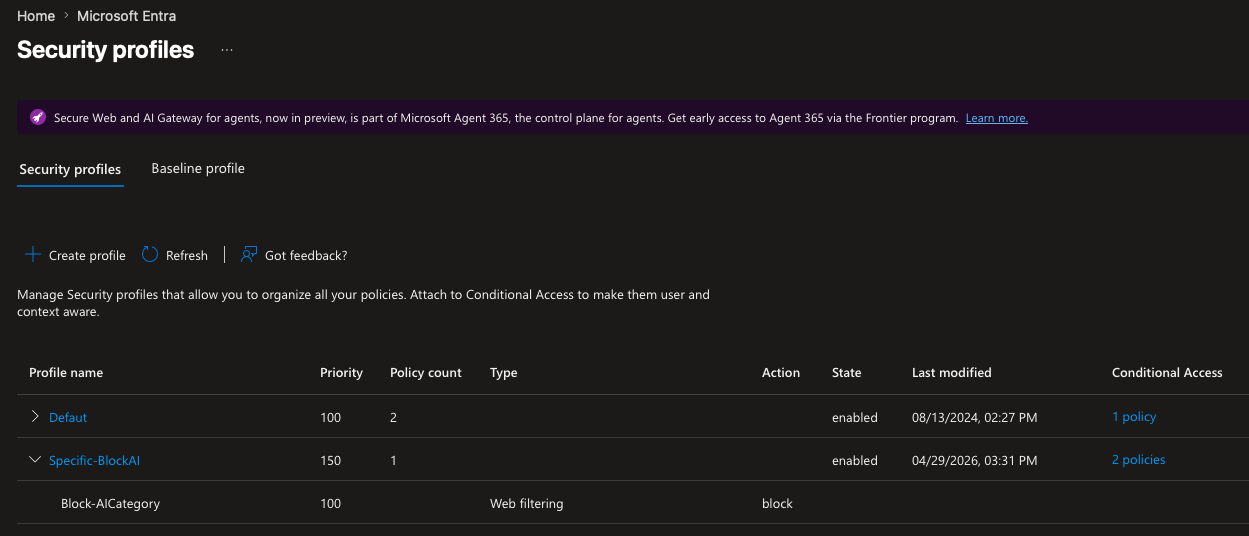
Im ersten Schritt werden die Filtering Profiles in EIA konfiguriert - sie definieren welche Webkategorien und URLs erlaubt bzw. geblockt sind:

Konfiguration: Conditional Access Policy
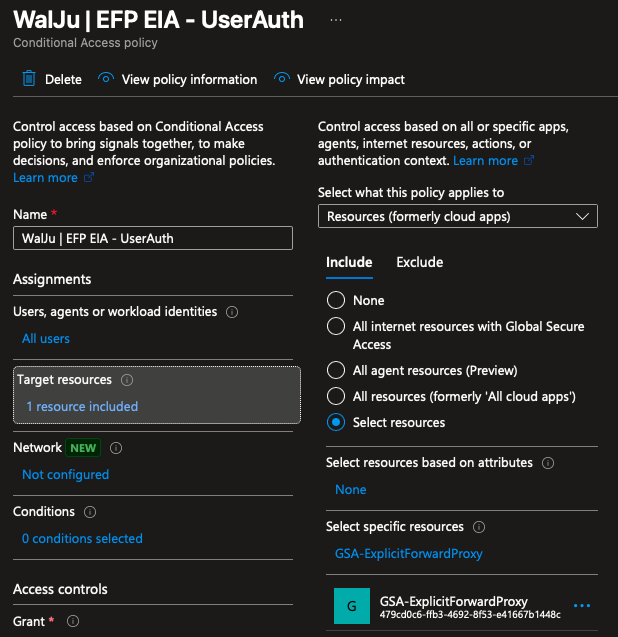
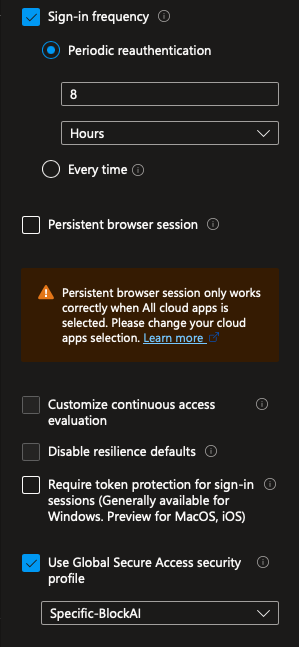
Die erstellten EIA Security Profiles werden über Conditional Access Policies Usern oder Gruppen zugewiesen. Wichtig ist hier, dass der Service Principal des EFP Proxies direkt als Target Ressource referenziert wird! In der CA Policy wird als Session Control das entsprechende EIA Profil referenziert:
Auth-Redirect in der Praxis
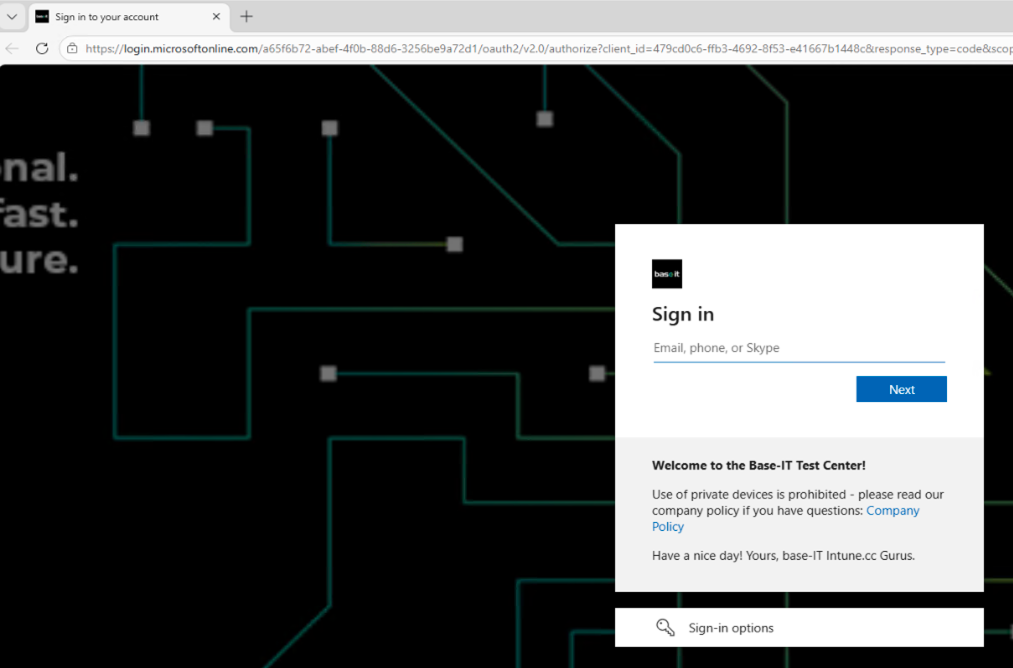
Beim ersten Zugriff über den EFP ohne bestehende Session wird der Browser transparent zu Entra ID weitergeleitet:
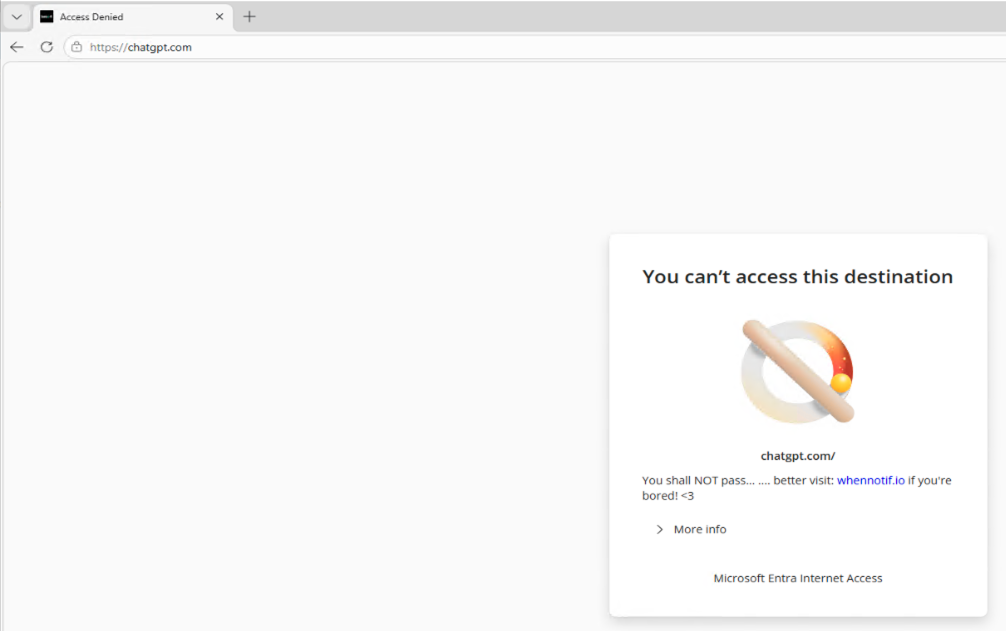
Nach erfolgreicher Authentifizierung werden Policy-Entscheidungen user-spezifisch getroffen. Geblockte Inhalte werden mit einer kontextbezogenen Blockseite quittiert, die den authentifizierten User referenziert:
Fazit
Entra Internet Access Explicit Forward Proxy schließt die Lücke die vorher den agent-basierten GSA-Client zwingend vorausgesetzt hat. PAC-File-Deployment ist in jedem Enterprise-Umfeld etabliert - Server, nicht-verwaltete Geräte, Appliances, Linux-Workloads, alles was HTTP-Proxy versteht kann jetzt über EIA geroutet werden.
Mit user-basierter Authentifizierung ist EFP jetzt ein vollständiger identitätsbewusster Proxy: kein generisches Baseline-Profil für alle, sondern CA-Policy-gesteuerte Filterentscheidung auf Basis des angemeldeten Users. Das ist der konzeptuelle Punkt, der EFP von einem “auch ein Cloud-Proxy” zu einem nativen Zero-Trust-Netzwerkcontrol macht.
Die Abhängigkeit von TLS-Inspektion bleibt die organisatorische Hürde: PKI-Planung, Client-Trust-Deployment und Bypass-Listen für nicht-inspizierbare Verbindungen (Banking, Client-Auth-Zertifikate, Healthcare-Anwendungen) müssen vor dem Rollout sauber definiert sein.
Entra Internet Access Without a GSA Agent - Explicit Forward Proxy in Public Preview
Until today, Entra Internet Access (EIA) required the Global Secure Access (GSA) client to be installed on the endpoint. That was the classic agent-based approach familiar from other ZTNA solutions (Zero Trust Network Access) — useful for managed devices, but limited for unmanaged devices or server workloads.
Starting today, that changes. Microsoft has released the Explicit Forward Proxy (EFP) for Entra Internet Access into Public Preview — creating an agentless alternative.
The Concept: Proxy Instead of Agent
The concept isn’t new. Palo Alto Prisma Access, Zscaler Internet Access, and similar cloud proxy solutions have offered exactly this for years: a proxy endpoint that devices or firewalls forward traffic to, with no client agent required. Configuration happens via a PAC file (Proxy Auto-Configuration) delivered to the browser or OS.
Microsoft is now implementing the same model in EIA. The differentiator compared to other vendors is the native Entra ID integration — Conditional Access, user identity, and existing Entra Internet Access Security Profiles are natively embedded.
Technical flow:
- Device or browser loads the PAC file provided by Microsoft
- Defined traffic is forwarded to the EFP endpoint of the EIA service (
https://TENANTID.internet.efp.globalsecureaccess.microsoft.com) - EFP terminates the connection and re-establishes it on behalf of the client
- TLS inspection analyzes the decrypted traffic against configured EIA policies
- Connection is forwarded or blocked
EFP requires TLS inspection to be enabled. Without TLS inspection configured in EIA, the Explicit Forward Proxy does not function — Microsoft cannot evaluate encrypted traffic against Web Content Filter policies without it.
Configuration: Step by Step
1. Set Up TLS Inspection
TLS inspection is the technical prerequisite. EIA must be able to break open and inspect HTTPS connections. This requires a root CA certificate that allows the EFP service to issue on-the-fly certificates for visited domains.
The first step is generating a CSR (Certificate Signing Request) directly in the EIA configuration:
The generated CSR is then signed with your own CA. This example uses ADCS — but any PKI works (for certificate template requirements, refer directly to the MS Learn article):
The signed certificate including the full certificate chain is then uploaded into EIA:
TLS inspection is then enabled:
After successful activation, the portal shows the status as enabled:
The certificate used for TLS inspection must be trusted on the clients — via Group Policy (for AD-joined devices) or Intune Certificate Profile (for Entra-joined/hybrid devices). Without client trust, every HTTPS connection through the EFP will fail with a certificate error.
2. Configure PAC File and Retrieve URL
Once TLS inspection is active, the PAC file configuration becomes available in EIA. This is where the EFP proxy endpoint is defined and a unique PAC file URL is generated:
The actual PAC file content — which URLs or domains are routed through the EFP versus going direct — is configured in the EIA Traffic Forwarding Profiles:
The PAC file URL is then deployed to clients via GPO (Computer Configuration → Administrative Templates → Windows Components → Internet Explorer → Automatic Browser Configuration) or an Intune Device Configuration Profile. In this demo, the PAC file URL was configured directly in the Windows 11 proxy settings.
3. Verify Functionality
Once a client loads the PAC file and routes traffic through the EFP, the connection can be verified at multiple levels.
Outbound IP: Traffic appears on destination web servers with a Microsoft SSE IP:
TLS Certificate: The browser shows the certificate dynamically issued by EIA for the visited domain — issued by a Microsoft SubCA that chains technically under the configured enterprise SubCA set up for TLS inspection:
EIA on Server Workloads: Since no agent is required, EFP works on Windows Server as well — demonstrated here via Internet Explorer on a server system:
4. Blocking in Action
EIA Web Content Filtering blocks traffic according to the configured policy — users see a corresponding block page:
PAC File in Enterprise Environments
A PAC file (Proxy Auto-Configuration) is plain JavaScript with a single exported function: FindProxyForURL(url, host). It returns whether a connection goes direct (DIRECT) or through a proxy (PROXY host:port). The PAC file provided by Microsoft can be used as a baseline and extended for enterprise-specific requirements.
Relevant PAC functions for traffic control:
| Function | Usage |
|---|---|
myIpAddress() | Returns the requesting client’s IP — enables subnet-based routing |
isInNet(ip, subnet, mask) | Checks whether an IP falls within a network range |
dnsDomainIs(host, domain) | Matches hosts based on domain |
shExpMatch(host, pattern) | Wildcard matching on hostnames |
isPlainHostName(host) | Detects internal short names without a domain component |
Typical enterprise extensions:
function FindProxyForURL(url, host) {
  // Internal targets go direct
  if (isInNet(dnsResolve(host), "10.0.0.0", "255.0.0.0")) return "DIRECT";
  if (isPlainHostName(host)) return "DIRECT";

  // Subnet-based differentiation:
  // Server VLAN (10.10.0.0/24) → bypass proxy for certain destinations
  if (isInNet(myIpAddress(), "10.10.0.0", "255.255.255.0")) return "DIRECT";

  // Everything else → EFP
  return "PROXY efp.globalsecureaccess.microsoft.com:8080";
}
Self-hosting for access control: Organizations that host the PAC file URL internally (IIS, nginx, Azure Static Web App) can restrict PAC file delivery via IP ACLs. Only clients from authorized subnets receive the file — others get a DIRECT fallback or no response. This prevents unauthorized devices from using the EFP endpoint without maintaining complex access lists on the proxy itself.
User-Based Authentication
The initial limitation — a single baseline profile for all EFP connections — is now resolved. User-based authentication is now configurable and makes EFP a fully identity-aware proxy.
How it works: When a browser sends a CONNECT request to the EFP, it checks for an existing Entra ID session. If none exists, the EFP redirects the browser to Entra ID authentication. After successful sign-in, EIA evaluates the user’s Conditional Access Policy assignments to determine which Security Profile applies — and therefore which traffic is allowed or blocked.
Configuration: EIA Security Profiles
The first step is configuring Filtering Profiles in EIA — they define which web categories and URLs are allowed or blocked:
Configuration: Conditional Access Policy
The EIA Security Profiles are assigned to users or groups via Conditional Access Policies. Important: the Service Principal of the EFP Proxy must be referenced directly as the target resource in the CA Policy. The EIA profile is then applied as a Session Control:
Auth Redirect in Practice
On first access through the EFP without an existing session, the browser is transparently redirected to Entra ID:
After authentication, policy decisions are made per-user. Blocked content is presented with a contextual block page that references the authenticated user:
Conclusion
Entra Internet Access Explicit Forward Proxy closes the gap that previously mandated the agent-based GSA client. PAC file deployment is established in every enterprise environment — servers, unmanaged devices, appliances, Linux workloads, anything that speaks HTTP proxy can now be routed through EIA.
With user-based authentication now available, EFP is a fully identity-aware proxy: no generic baseline profile for everyone, but CA-policy-driven filter decisions based on the signed-in user. That’s the conceptual point that moves EFP from “another cloud proxy” to a native Zero Trust network control.
The dependency on TLS inspection remains the organizational hurdle: PKI planning, client trust deployment, and bypass lists for connections that must not be inspected (banking, client auth certificates, healthcare applications) need to be defined before rollout.