Warum Phishing-Resistant MFA nicht reicht: MFA Downgrade Attacks als neue Gefahr
Conditional Access mit MFA – und trotzdem kompromittiert
Stell dir vor: Du hast Conditional Access sauber konfiguriert. Alle Cloud-Apps sind abgesichert, Legacy Auth ist deaktiviert und jede Anmeldung erfordert MFA. Was soll hier denn noch passieren? Würde man meinen…
Und dann landet ein Session Token beim Angreifer. Ohne dass das Passwort gestohlen wurde. Ohne dass der User etwas Verdächtiges bemerkt hat. Und ohne dass MFA irgendwas verhindert hätte.
Das ist kein hypothetisches Angriffsszenario – das ist der Alltag von Adversary-in-the-Middle-Angriffen (AitM). Und “Require MFA” als Conditional Access Control ist dagegen schlicht wirkungslos.
Wie AitM-Angriffe funktionieren
AitM-Frameworks wie Evilginx schalten sich als Reverse Proxy zwischen den User und den legitimen Identity Provider – in diesem Fall Entra ID. Der User tippt seine Zugangsdaten ein, schließt die MFA-Challenge ab, und erhält Zugriff. Alles sieht normal aus.
Was der User nicht sieht: Sämtliche Tokens – Access Token, Refresh Token, Session Cookie – laufen durch den Proxy des Angreifers. Der Angreifer kopiert sie. Ab diesem Moment kann er sich als der User ausgeben, ohne jemals sein Passwort zu kennen oder eine MFA-Abfrage zu lösen.
“Require MFA” schützt den Authentifizierungsprozess. Es schützt nicht den Token, der danach ausgestellt wird.
AitM-Angriffe umgehen MFA nicht – sie lassen den User MFA vollständig abschließen und stehlen erst danach den Session Token. Conditional Access bemerkt davon nichts.
Die logische Konsequenz: Phishing-Resistant MFA
Die Antwort der Security-Community war klar: Wenn ein Angreifer den User auf eine gefälschte Login-Seite lotst, dann brauchen wir MFA-Methoden, die gar nicht auf Fake-Domains funktionieren.
Genau das leisten FIDO2 Security Keys und Passkeys. Sie sind origin-bound – die Authentifizierung ist an die echte Domain gebunden. Ein FIDO2 Key, der auf login.microsoft.com registriert wurde, funktioniert auf login.microsoft.com.evilproxy.net schlicht nicht. Der Angriff bricht an dieser Stelle zusammen.
Die Empfehlung ist daher eindeutig: Phishing-Resistant MFA über Conditional Access erzwingen. FIDO2, CBA (“Certificate-based Authentication”) oder Windows Hello for Business - keine SMS, kein Push-Approval.
Solide Empfehlung. Aber leider nicht mehr ausreichend.
MFA Downgrade Attacks – das Problem das unter dem Radar fliegt
Hier kommt der Teil, der in den meisten Diskussionen noch fehlt.
Aktuelle AitM-Frameworks – darunter aktuelle Versionen von Evilginx – können dem User während der Anmeldung gezielt nur schwache MFA-Methoden anzeigen, selbst wenn er FIDO2 oder Passkeys konfiguriert hat.
Das Prinzip: Der Proxy manipuliert die Antwort von Entra ID bevor sie den Browser des Users erreicht. Statt der vollständigen Liste der verfügbaren Authentifizierungsmethoden sieht der User nur das, was der Angreifer ihm zeigen möchte – zum Beispiel nur Authenticator App Push oder SMS. Der FIDO2 Key erscheint gar nicht erst als Option.
Der User – der vielleicht gelegentlich FIDO2 nutzt, aber auch noch den Authenticator am Handy hat – wählt das was er sieht. Der Angriff funktioniert. Der Token wird gestohlen.
Das ist kein Exploit in Entra ID. Das ist ein Angriff auf das Vertrauen des Users in das was ihm angezeigt wird.
Ein User kann nicht wählen, was ihm nicht angezeigt wird. Solange Entra ID mehrere MFA-Methoden erlaubt und keine serverseitige Einschränkung erzwingt, kann ein AitM-Proxy die Methodenliste nach Belieben manipulieren.
MFA Downgrade in der Praxis
Im folgenden Video siehst du wie ein solcher Angriff mit Evilginx abläuft – vom gefälschten Login bis zum erfolgreichen Session Token Diebstahl, obwohl der User FIDO2 registriert hat:
Video mit freundlicher Genehmigung von Kuba Gretzky, Entwickler von Evilginx.
Die Lösung: Authentication Strength in Conditional Access
Der entscheidende Unterschied zu “Require MFA”: Authentication Strength schreibt nicht nur vor, dass MFA verwendet werden muss, sondern welche Methoden konkret akzeptiert werden.
Wenn eine Conditional Access Policy eine Authentication Strength mit ausschließlich FIDO2 Security Keys oder Passkeys erzwingt, kann Entra ID keinen Token ausstellen, der auf einer schwächeren Methode basiert. Egal was der Proxy dem User anzeigt – wenn die Anmeldung nicht mit einer der erlaubten Methoden abgeschlossen wurde, verweigert Entra ID den Zugriff. Der Downgrade-Angriff läuft ins Leere.
Konfiguration in Entra ID
Schritt 1: Authentication Strength definieren
Unter Entra ID → Sicherheit → Authentifizierungsrichtlinien → Authentifizierungsstärken kannst du eigene Stärken anlegen oder die eingebaute “Phishing-resistant MFA” verwenden:
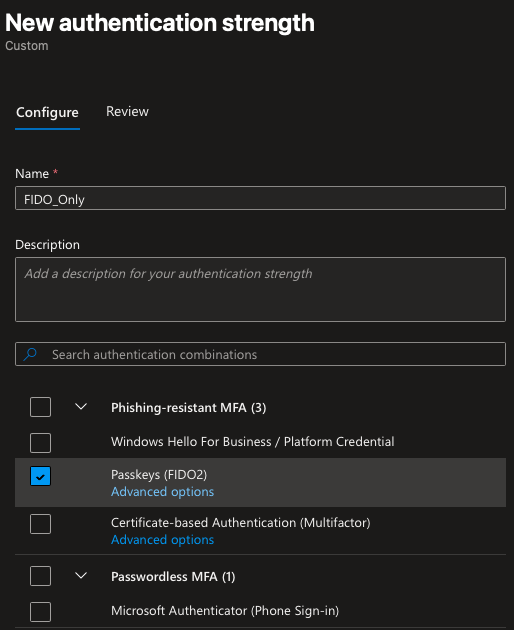
Schritt 2: Authentication Strength in Conditional Access Policy einbinden
In der CA Policy unter Zugriffssteuerungen → Gewähren wählst du statt “Mehrstufige Authentifizierung erfordern” die Option “Authentifizierungsstärke erfordern” und wählst deine definierte Stärke:
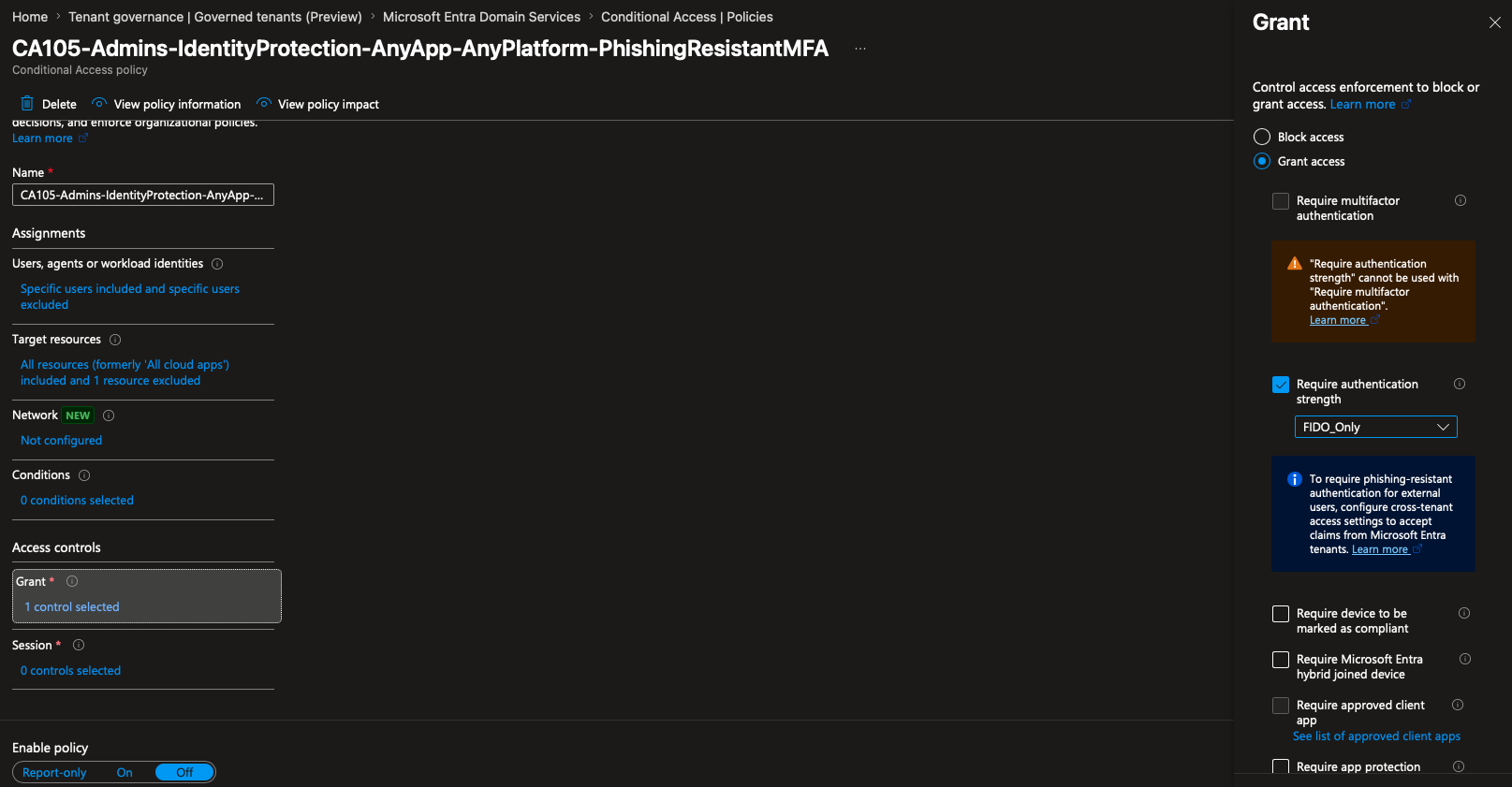
Wichtig: Die eingebaute “Phishing-resistant MFA” Strength umfasst FIDO2 Security Keys, Windows Hello for Business und zertifikatbasierte Authentifizierung. Passkeys (device-bound) sind ebenfalls enthalten. SMS und Authenticator App Push sind explizit ausgeschlossen.
Was sich dadurch ändert
| Konfiguration | Schutz gegen AitM Token Theft | Schutz gegen MFA Downgrade |
|---|---|---|
| Require MFA (klassisch) | ✗ | ✗ |
| Require MFA + Phishing-Resistant MFA registriert | Teilweise ✓ | ✗ |
| Authentication Strength (Phishing-Resistant only) | ✓ | ✓ |
Was jetzt zu tun ist
Wenn du Phishing-Resistant MFA bereits eingeführt hast, ist das ein guter Start – aber er reicht nicht, solange Entra ID parallel noch schwächere Methoden für denselben User erlaubt.
Die Schritte:
- Authentication Strength Policy erstellen mit ausschließlich FIDO2 / Passkeys / WHfB
- Bestehende CA Policies anpassen: “Require MFA” durch die neue Authentication Strength ersetzen
- SSPR und Registrierung absichern: Die Authentication Methods Policy in Entra ID so konfigurieren, dass schwache Methoden für privilegierte Accounts gar nicht erst registriert werden können
- Monitoring: Sign-in Logs auf Authentifizierungen mit schwachen Methoden prüfen – insbesondere bei Accounts, für die eigentlich Phishing-Resistant MFA erzwungen sein sollte
Solange ein User sowohl einen FIDO2 Key als auch einen Authenticator App Eintrag registriert hat und keine Authentication Strength erzwungen wird, ist er über MFA Downgrade angreifbar – unabhängig davon, wie gut seine CA Policies auf dem Papier aussehen.
Conditional Access with MFA – and still compromised
Imagine you’ve set up Conditional Access properly. All cloud apps are protected, legacy auth is disabled, and every sign-in requires MFA. What could possibly go wrong, right?
Then an attacker walks away with a session token. No password was stolen. The user noticed nothing suspicious. And MFA didn’t prevent a thing.
This isn’t a hypothetical scenario — it’s the everyday reality of Adversary-in-the-Middle (AitM) attacks. And “Require MFA” as a Conditional Access grant control is simply ineffective against it.
How AitM attacks work
AitM frameworks like Evilginx position themselves as a reverse proxy between the user and the legitimate identity provider — in this case Entra ID. The user enters their credentials, completes the MFA challenge, and gets access. Everything looks normal.
What the user doesn’t see: all tokens — access token, refresh token, session cookie — flow through the attacker’s proxy. The attacker copies them. From that point on, they can impersonate the user without ever knowing the password or solving an MFA challenge.
“Require MFA” protects the authentication process. It does not protect the token issued afterward.
AitM attacks don’t bypass MFA — they let the user complete MFA fully and steal the session token afterward. Conditional Access never notices.
The logical response: phishing-resistant MFA
The security community’s answer was clear: if an attacker can route users through a fake login page, we need MFA methods that simply don’t work on fake domains.
That’s exactly what FIDO2 security keys and passkeys provide. They are origin-bound — authentication is tied to the real domain. A FIDO2 key registered on login.microsoft.com won’t work on login.microsoft.com.evilproxy.net. The attack falls apart at that point.
The recommendation was therefore straightforward: enforce phishing-resistant MFA via Conditional Access. FIDO2, CBA (Certificate-based Authentication), or Windows Hello for Business — no SMS, no push approvals.
Solid recommendation. But unfortunately no longer sufficient on its own.
MFA Downgrade Attacks – the problem flying under the radar
Here’s the part that’s still missing from most discussions.
Current AitM frameworks — including recent versions of Evilginx — can selectively show users only weak MFA methods during sign-in, even if the user has FIDO2 or passkeys configured.
The mechanism: the proxy manipulates Entra ID’s response before it reaches the user’s browser. Instead of the full list of available authentication methods, the user sees only what the attacker wants them to see — for example, just Authenticator App push or SMS. The FIDO2 key never appears as an option.
The user — who might occasionally use FIDO2 but also has Authenticator on their phone — picks what they’re shown. The attack succeeds. The token is stolen.
This is not an exploit in Entra ID. It’s an attack on the user’s trust in what they’re being shown.
A user cannot choose what isn’t displayed. As long as Entra ID permits multiple MFA methods and no server-side restriction enforces a specific one, an AitM proxy can manipulate the method list at will.
MFA Downgrade in practice
The following video shows how this attack unfolds with Evilginx — from the fake login page to successful session token theft, even though the user has FIDO2 registered:
Video courtesy of Kuba Gretzky, creator of Evilginx.
The solution: Authentication Strength in Conditional Access
The key difference from “Require MFA”: Authentication Strength doesn’t just require that MFA is used — it specifies which methods are actually acceptable.
When a Conditional Access policy enforces an Authentication Strength that includes only FIDO2 security keys or passkeys, Entra ID cannot issue a token based on a weaker method. Regardless of what the proxy shows the user — if the sign-in wasn’t completed with one of the allowed methods, Entra ID denies access. The downgrade attack goes nowhere.
Configuration in Entra ID
Step 1: Define an Authentication Strength
Under Entra ID → Security → Authentication policies → Authentication strengths, you can create custom strengths or use the built-in “Phishing-resistant MFA”:
Step 2: Apply Authentication Strength in a Conditional Access policy
In the CA policy under Access controls → Grant, select “Require authentication strength” instead of “Require multifactor authentication”, then choose your defined strength:
The built-in “Phishing-resistant MFA” strength includes FIDO2 security keys, Windows Hello for Business, and certificate-based authentication. Device-bound passkeys are also included. SMS and Authenticator App push are explicitly excluded.
What this changes
| Configuration | Protection against AitM token theft | Protection against MFA downgrade |
|---|---|---|
| Require MFA (classic) | ✗ | ✗ |
| Require MFA + phishing-resistant MFA registered | Partial ✓ | ✗ |
| Authentication Strength (phishing-resistant only) | ✓ | ✓ |
What to do now
If you’ve already rolled out phishing-resistant MFA, that’s a good start — but it’s not enough as long as Entra ID still allows weaker methods for the same user in parallel.
Steps to take:
- Create an Authentication Strength policy containing only FIDO2 / passkeys / WHfB
- Update existing CA policies: replace “Require MFA” with the new Authentication Strength
- Secure SSPR and registration: configure the Authentication Methods policy in Entra ID so that weak methods cannot be registered by privileged accounts in the first place
- Monitor: review sign-in logs for authentications using weak methods — especially for accounts where phishing-resistant MFA should be enforced
As long as a user has both a FIDO2 key and an Authenticator App entry registered, and no Authentication Strength is enforced, they are vulnerable to MFA downgrade attacks — regardless of how strong their CA policies look on paper.