PhishGuard: AitM-Phishing im Browser erkennen – Community Edition jetzt auf GitHub
Die Bedrohung kennen wir – aber Lösung gibt es nach wie vor keine…
AitM-Phishing ist kein theoretisches Angriffsszenario. Es ist die bevorzugte Methode um MFA zu umgehen – und sie funktioniert. Wer das Grundprinzip noch nicht kennt: AitM-Phishing: Der Angreifer der mitliest erklärt den Angriff von Grund auf. Ergänzend dazu: MFA Downgrade-Angriffe zeigt wie Session-Token-Diebstahl in der Praxis aussieht.
Der Kern des Problems ist einfach: Ein AitM-Proxy sitzt zwischen User und Microsoft. Der User sieht die echte Microsoft-Seite – weil er auf der echten Seite ist, nur eben durch einen Angreifer-Server durchgeleitet. MFA schlägt an. Der Login gelingt. Und der Angreifer hat danach sowohl Passwort als auch gültigen Session-Token.
Serverseitige Maßnahmen wie Conditional Access, Authentication Strength oder Token Binding helfen – aber sie greifen nach dem Login. Die Frage die PhishGuard beantwortet: Was passiert davor, im Browser des Users?
Warum AitM-Proxies erkennbar sind – und wie genau
Es gibt bereits einige Ansätze um AitM-Logins zu erkennen. Der bekannteste ist ein Custom CSS-Trick in Entra ID: Über das benutzerdefinierte Branding lässt sich ein CSS-File einbinden das eine externe Ressource (z.B. ein Pixel auf einem eigenen Server) lädt. Wird diese Ressource nicht geladen, ist das ein Indiz für einen Proxy der die externe Anfrage blockt.
Dieser Ansatz wurde in der Security-Community viel genutzt und ist kreativ – hat aber eine kritische Schwäche: Microsoft schafft Custom CSS-Branding in Entra ID ab. Die Funktionalität wird in absehbarer Zeit entfernt, womit diese Detection-Methode ersatzlos wegfällt. Wer sie aktuell einsetzt, braucht eine Alternative.
Andere Methoden basieren auf URL-Blocklisten (reagieren zu langsam auf neue Domains) oder heuristischen Browser-Plugins die oft zu viele False Positives produzieren.
PhishGuard geht einen anderen Weg: statt einer einzelnen Heuristik oder einer externen Liste werden 12 unabhängige Signale direkt im Browser ausgewertet – lokal, ohne Telemetrie, ohne Cloud-Abhängigkeit.
Die 12 Detection-Signale im Detail
AitM-Proxies wie Evilginx, Modlishka oder Muraena leiten die echte Microsoft-Loginseite durch – inklusive des gesamten JavaScript-Codes, der DOM-Struktur und der eingebetteten Tenant-Daten. Genau das macht sie erkennbar: Auf einer gephishten Seite auf einer fremden Domain gibt es Microsoft-spezifische Artefakte, die dort nichts zu suchen haben.
| Signal | Gewichtung | Was wird geprüft |
|---|---|---|
| Microsoft JS-Runtime | 4 Punkte | $Config / ServerData Objekte oder ≥3 Inline-Script-Marker (hpgact, sFT, apiCanary, ConvergedSignIn …) |
| Tenant-Branding-Daten | 3 Punkte | $Config.aTenantBranding[0] enthält TenantId, BannerLogo oder UserIllustrationUrl |
| ConvergedSignIn PageID | 3 Punkte | <meta name="PageID" content="ConvergedSignIn"> |
| Microsoft CDN-Ressourcen | 3 Punkte | Scripts/Stylesheets von aadcdn.msftauth.net / aadcdn.msauth.net |
| MS-spezifische DOM-IDs | 3 Punkte | ≥2 von: #i0116, #i0118, #idSIButton9, #lightbox, [name="loginfmt"] … |
| Body-Klassen | 2 Punkte | body.win10, body.win7, body.mac oder data-bind auf dem Body-Element |
| Microsoft-Blau Button | 2 Punkte | Submit-Button in Farbnähe zu #0067b8 (±10 RGB-Einheiten) |
| Branding / Logo-Hinweise | 2 Punkte | <img> Alt/Src/Class mit Microsoft-Branding-Mustern |
| OAuth Hidden-Inputs | 2 Punkte | ≥2 Hidden-Inputs mit Namen wie PPFT, canary, ctx, client_id, flowtoken |
| Login-Formular-Struktur | 1 Punkt | Passwort- oder E-Mail-Feld vorhanden |
| Seitentitel-Match | 1 Punkt | ”Sign in” / “Microsoft” / “Anmelden” im document.title |
| Anmelde-Button-Text | 1 Punkt | Button-Label enthält typische Login-Begriffe |
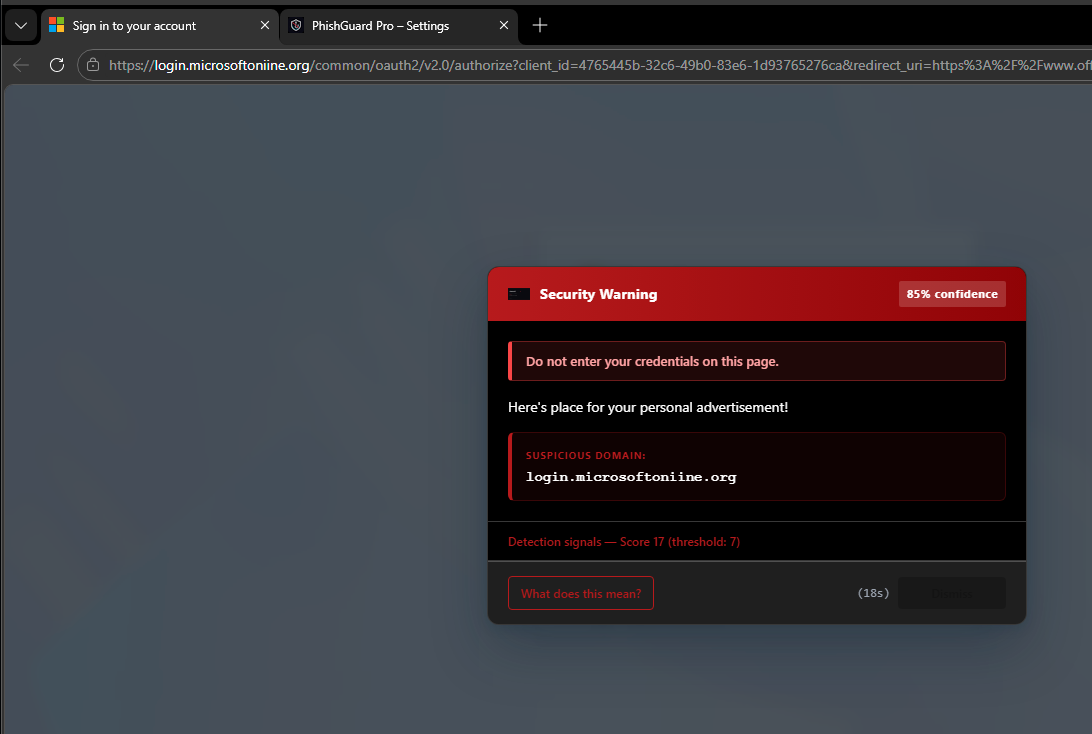
Schwellwert: 7 Punkte. Echte Microsoft-Seiten erreichen 18–24 Punkte. AitM-Proxies – die ja den vollen DOM spiegeln müssen um funktionsfähig zu bleiben – kommen typischerweise auf 10–17 Punkte, also weit über dem Schwellwert.
Das entscheidende Signal ist das Tenant-Branding: Microsoft bettet beim Rendern der Loginseite Tenant-spezifische Daten direkt als JavaScript-Objekt ein – TenantId, Logos, Illustrationen. Ein AitM-Proxy leitet diese Antwort 1:1 weiter. Der Browser empfängt also eine Seite mit Microsoft-internen Tenant-Daten – auf einer Domain die nicht microsoftonline.com ist. Diese Kombination ist das Kernindiz.
PhishGuard ist kein Ersatz für Phishing-Resistant MFA oder Conditional Access – es ist eine zusätzliche Erkennungsschicht direkt auf dem Gerät des Users, bevor Credentials eingegeben werden.
PhishGuard: Community Edition vs. Pro Edition
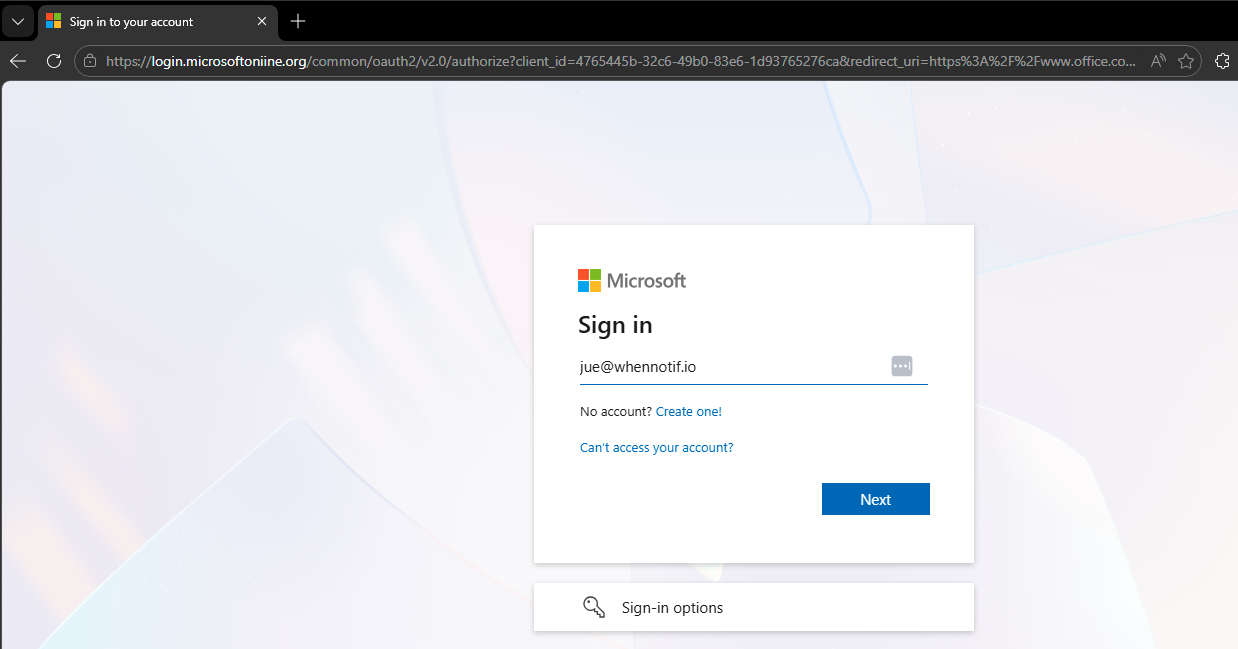
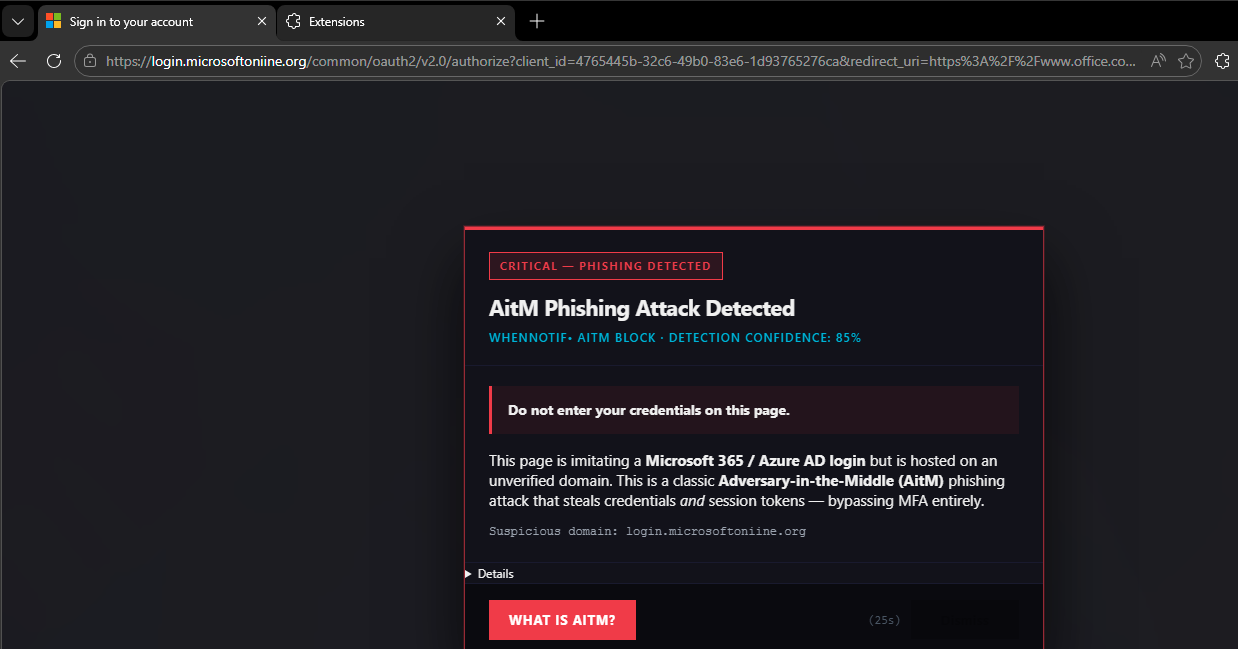
Community Edition – kostenlos, Open Source
Die Community Edition ist die Basisvariante. Kein Account, keine Cloud, keine Daten die das Gerät verlassen.
Features:
- AitM-Detection via 12 Signale, Threshold 7
- Vollbild-Warnung mit Erkennungs-Details
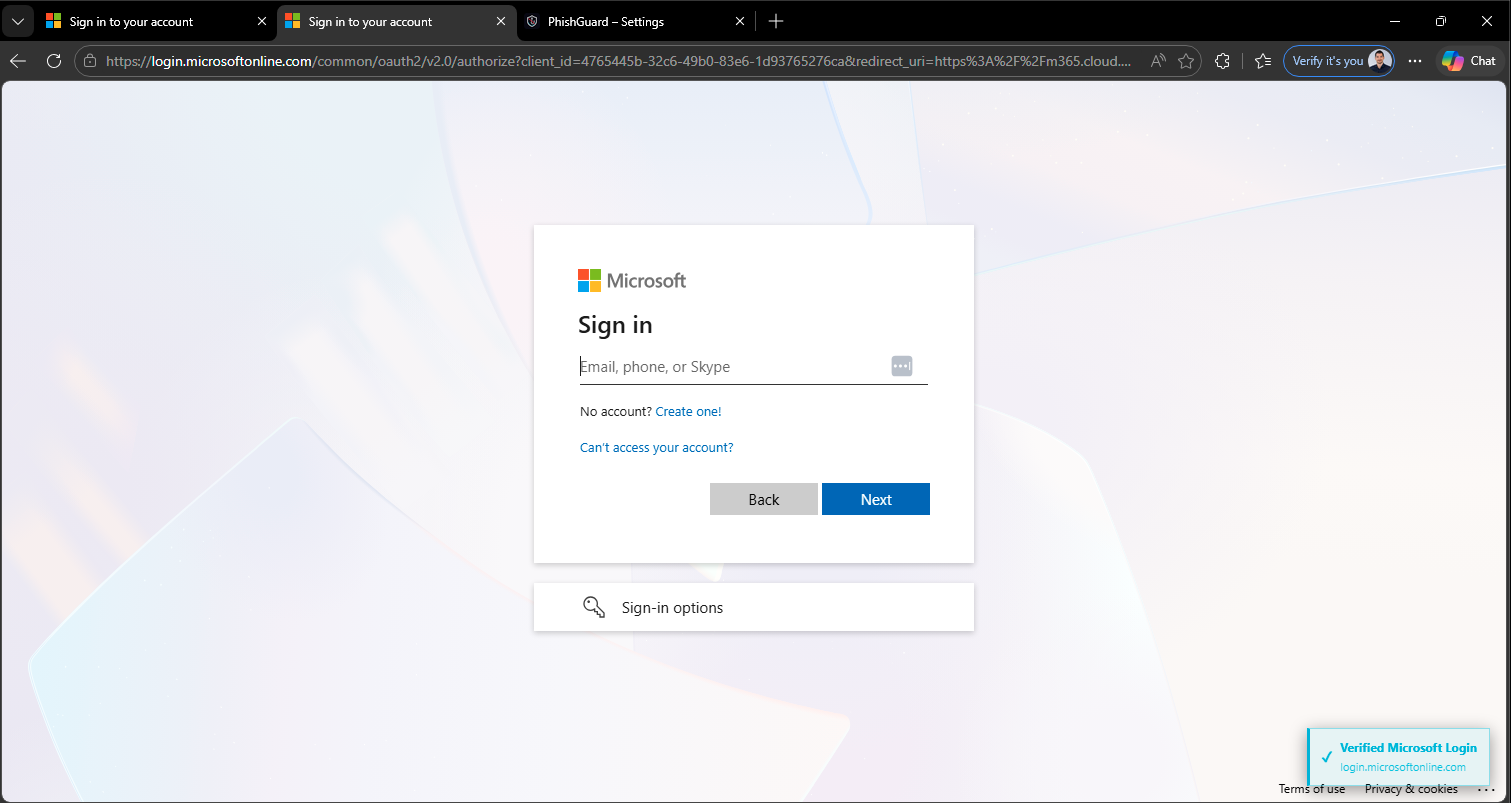
- Verified Badge auf legitimen Microsoft-Login-Domains
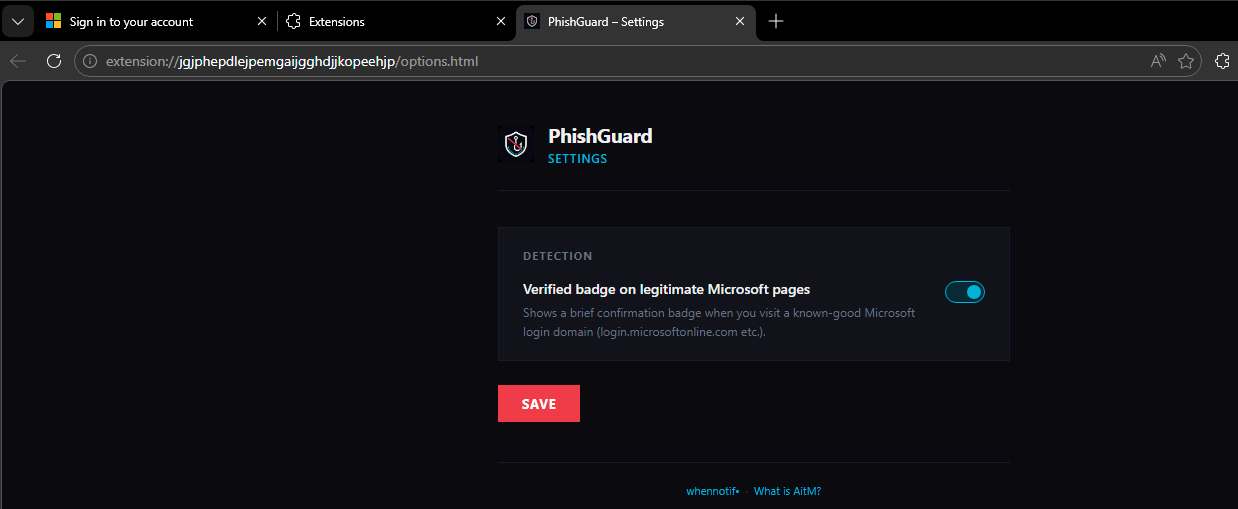
- Settings-Page zum Ein-/Ausschalten des Badges
- Chrome, Edge und Firefox
Pro Edition – für Unternehmen
Die Pro Edition ist für den Enterprise-Einsatz ausgelegt: Intune-Deployment, Webhook-Integration, Custom Branding und erweiterte Management-Optionen.
Alle Features der Community Edition, plus:
Webhook / Incident Reporting
Jede Detektion sendet automatisch einen JSON-Payload an einen konfigurierten Endpoint – ideal für SIEM-Integration oder Teams-Alerting via Logic App.
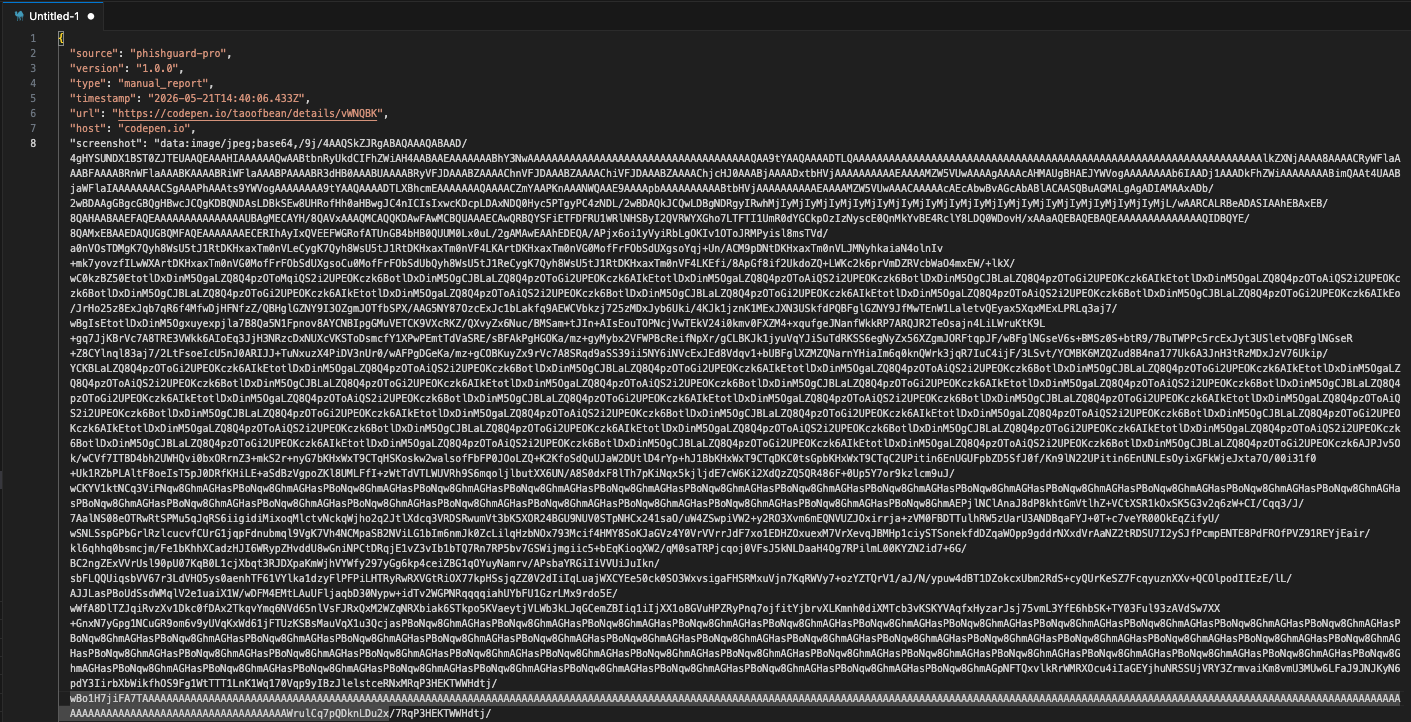
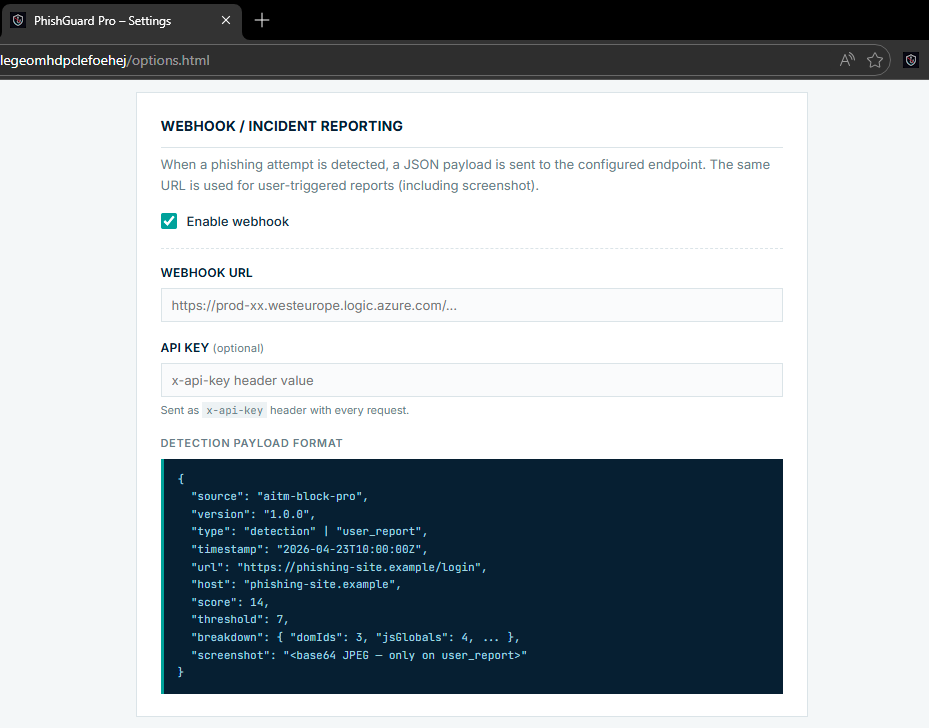
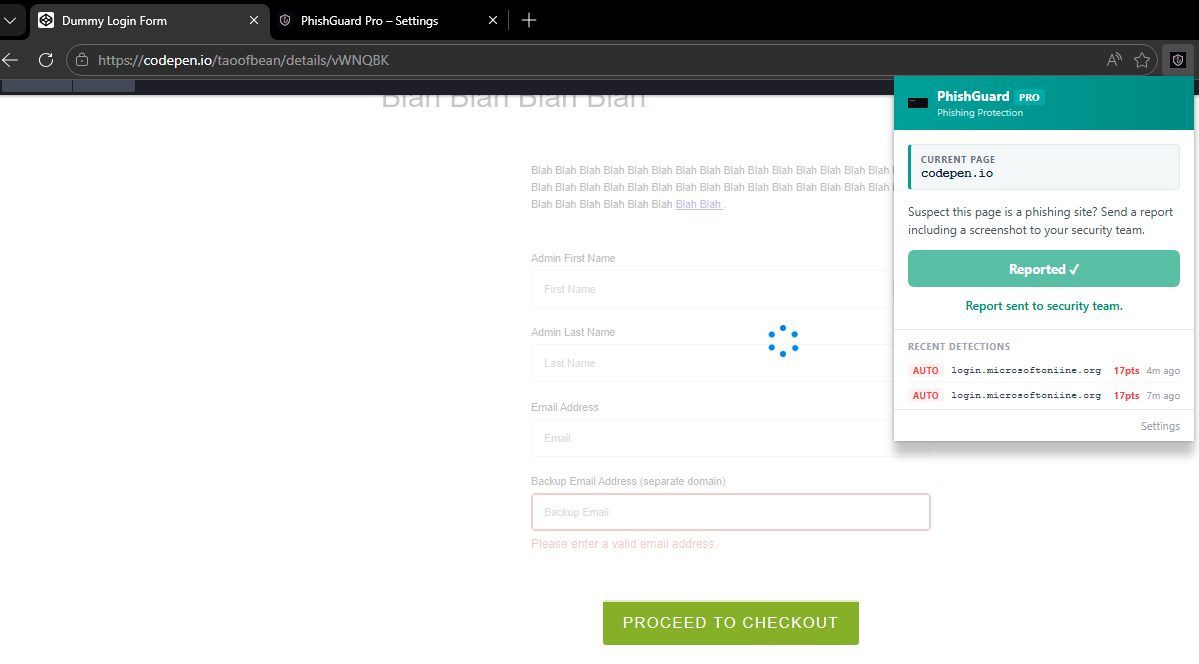
Zusätzlich kann der User über das Extension-Popup jede beliebige Seite manuell als Phishing melden – inklusive Screenshot.
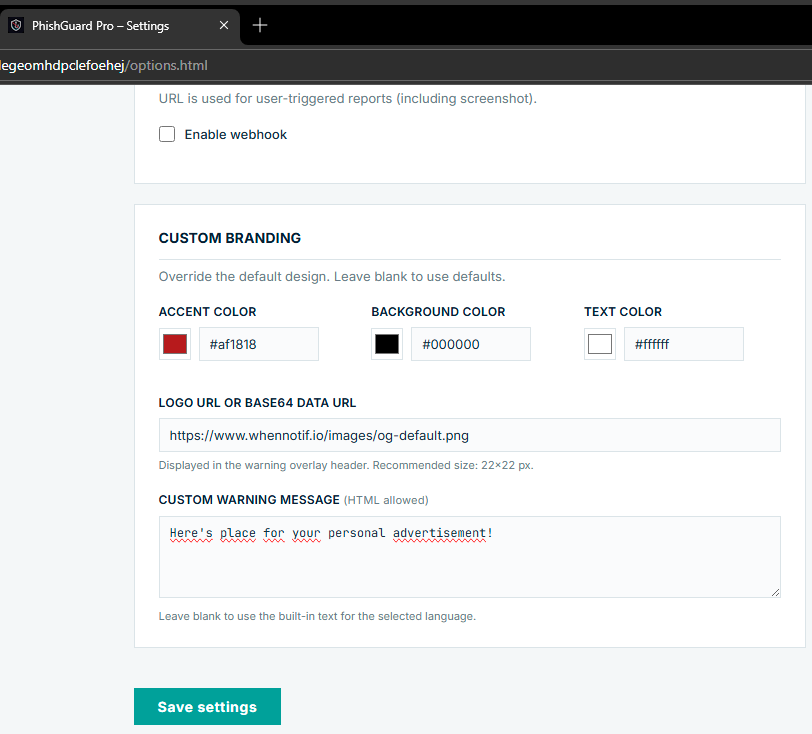
Custom Branding
Logo, Akzentfarbe, Hintergrund, Textfarbe und der Warntext selbst sind vollständig anpassbar – für Deployments die ein eigenes Corporate Design verlangen.
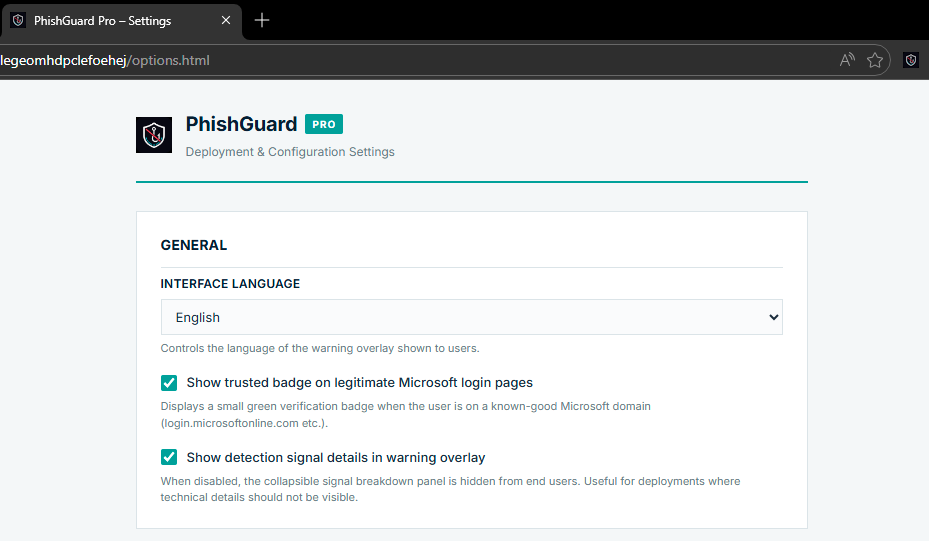
Detection Signal Details – steuerbar
Für Deployments bei denen technische Details nicht für Enduser sichtbar sein sollen, lässt sich das Signal-Panel im Overlay per Setting deaktivieren.
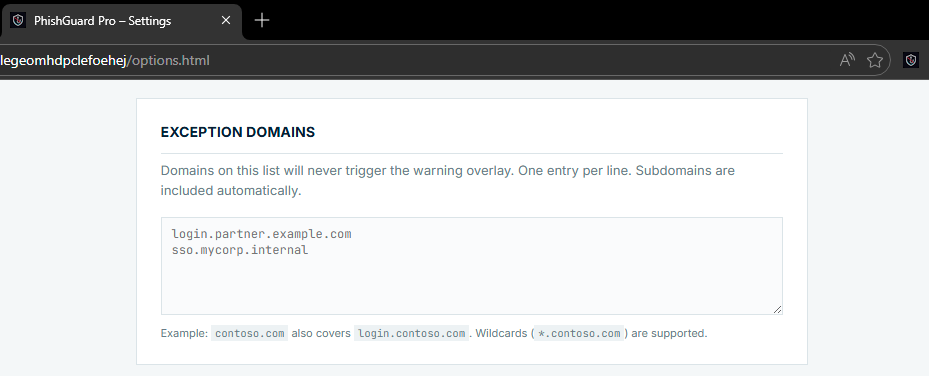
Exception Domains / Whitelist
Interne SSO-Portale oder Staging-Umgebungen die die Microsoft-Loginseite nachbauen lassen sich per Domain-Eintrag aus der Detection ausschließen.
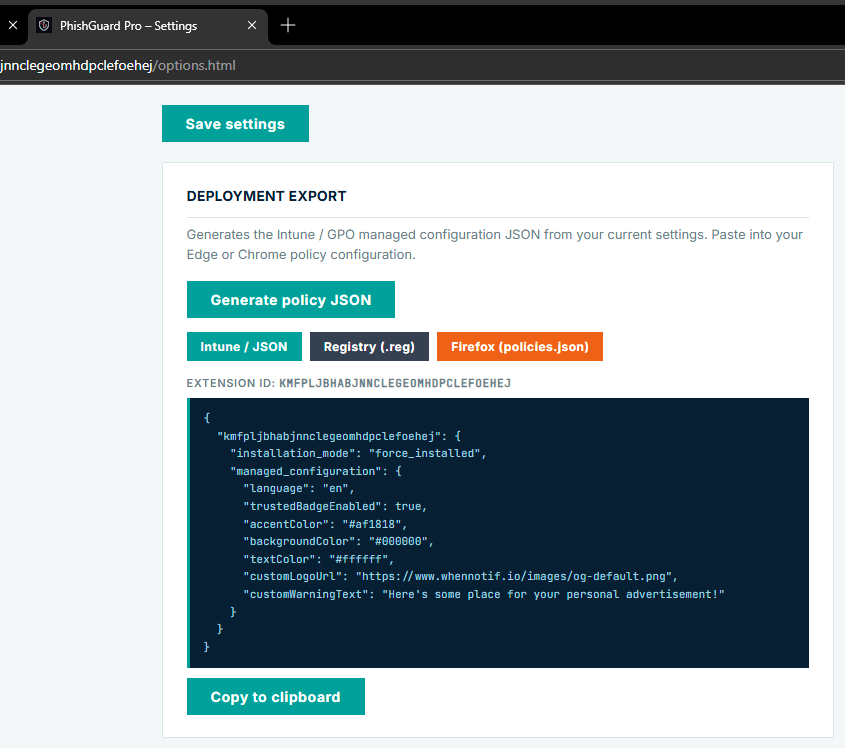
Intune / Registry / Firefox Policy Export
Die Options-Page generiert auf Klick die fertige Intune-JSON-Policy oder eine .reg-Datei mit der korrekten Extension-ID vorausgefüllt – direkt kopierbar und in Intune / Registry / GPO verwendbar.
Feature-Vergleich im Überblick:
| Feature | Community | Pro |
|---|---|---|
| AitM-Detection (12 Signale) | ✓ | ✓ |
| Vollbild-Warnung | ✓ | ✓ |
| Verified Badge | ✓ | ✓ |
| Settings-Page | ✓ | ✓ |
| Chrome / Edge / Firefox | ✓ | ✓ |
| DE/EN Sprache | – | ✓ |
| Webhook on Detection | – | ✓ |
| Manueller User-Report + Screenshot | – | ✓ |
| Custom Branding | – | ✓ |
| Signal-Panel steuerbar | – | ✓ |
| Whitelist-Domains | – | ✓ |
| Intune / Managed Storage | – | ✓ |
| Policy-Export (JSON / .reg / Firefox) | – | ✓ |
| Lokales Detection-Log | – | ✓ |
Verfügbarkeit & Kontakt
Community Edition
Die Community Edition ist ab sofort kostenlos auf GitHub verfügbar:
github.com/waljue/phishguard-community
Installation via “Load unpacked” in Chrome/Edge oder als Temporary Add-on in Firefox – keine Store-Review-Wartezeit, direkt einsetzbar.
Feedback, Bug-Reports und False-Positive-Meldungen sind willkommen – einfach ein Issue auf GitHub öffnen.
Pro Edition
Die Pro Edition ist aktuell nicht öffentlich verfügbar, wird aber in einem Early-Access-Modell ausgerollt. Wer Interesse hat – ob als Unternehmen oder privat – kann sich direkt melden. Die ersten Interessierten können die Pro Edition selbstverständlich kostenfrei testen.
PhishGuard ersetzt keine Phishing-Resistant MFA (FIDO2/Passkeys). Es ist eine zusätzliche Erkennungsschicht – sinnvoll als Defense-in-Depth-Maßnahme, aber kein Allheilmittel.
We know the threat — but theres no solution yet…
AitM phishing is not a theoretical scenario. It is the preferred method to bypass MFA — and it works. If you are not familiar with the fundamentals: AitM Phishing: The Attacker Who Watches explains the attack from the ground up. Additionally: MFA Downgrade Attacks shows what session token theft looks like in practice.
The core of the problem is straightforward: an AitM proxy sits between the user and Microsoft. The user sees the real Microsoft page — because they are on the real page, just routed through an attacker-controlled server. MFA triggers. The login succeeds. And the attacker now has both the password and a valid session token.
Server-side measures like Conditional Access, Authentication Strength, or Token Binding help — but they kick in after the login. The question PhishGuard answers: what happens before that, in the user’s browser?
Why AitM proxies are detectable — and how
There are already a few approaches to detecting AitM logins. The best-known is a Custom CSS trick in Entra ID: via custom branding, a CSS file can be injected that loads an external resource (e.g. a pixel on your own server). If that resource is not loaded, it is an indicator that a proxy is blocking the external request.
This approach has been widely used in the security community and is creative — but it has a critical weakness: Microsoft is deprecating Custom CSS branding in Entra ID. The feature will be removed, taking this detection method with it. Anyone currently relying on it needs an alternative.
Other methods rely on URL blocklists (too slow to react to new domains) or heuristic browser plugins that produce too many false positives.
PhishGuard takes a different approach: instead of a single heuristic or an external list, 12 independent signals are evaluated directly in the browser — locally, without telemetry, without cloud dependency.
The 12 detection signals in detail
AitM proxies like Evilginx, Modlishka, or Muraena relay the real Microsoft login page verbatim — including the full JavaScript code, DOM structure, and embedded tenant data. That is precisely what makes them detectable: on a phished page on a foreign domain, there are Microsoft-specific artifacts that have no business being there.
| Signal | Weight | What is checked |
|---|---|---|
| Microsoft JS runtime | 4 pts | $Config / ServerData objects or ≥3 inline script markers (hpgact, sFT, apiCanary, ConvergedSignIn …) |
| Tenant branding data | 3 pts | $Config.aTenantBranding[0] contains TenantId, BannerLogo, or UserIllustrationUrl |
| ConvergedSignIn PageID | 3 pts | <meta name="PageID" content="ConvergedSignIn"> |
| Microsoft CDN resources | 3 pts | Scripts/stylesheets from aadcdn.msftauth.net / aadcdn.msauth.net |
| MS-specific DOM IDs | 3 pts | ≥2 of: #i0116, #i0118, #idSIButton9, #lightbox, [name="loginfmt"] … |
| Body classes | 2 pts | body.win10, body.win7, body.mac or data-bind on the body element |
| Microsoft blue button | 2 pts | Submit button color within ±10 RGB of #0067b8 |
| Branding / logo hints | 2 pts | <img> alt/src/class matching Microsoft branding patterns |
| OAuth hidden inputs | 2 pts | ≥2 hidden inputs named PPFT, canary, ctx, client_id, flowtoken |
| Login form structure | 1 pt | Password or email field present |
| Title match | 1 pt | ”Sign in” / “Microsoft” in document.title |
| Sign-in button text | 1 pt | Button label contains typical login terms |
Threshold: 7 points. Legitimate Microsoft pages score 18–24. AitM proxies — which must mirror the full DOM to remain functional — typically score 10–17, well above the threshold.
The decisive signal is tenant branding: when Microsoft renders a login page, it embeds tenant-specific data directly as a JavaScript object — TenantId, logos, illustrations. An AitM proxy relays this response verbatim. The browser receives a page with Microsoft-internal tenant data — on a domain that is not microsoftonline.com. That combination is the core indicator.
PhishGuard is not a replacement for phishing-resistant MFA or Conditional Access — it is an additional detection layer directly on the user’s device, before credentials are entered.
PhishGuard: Community Edition vs. Pro Edition
Community Edition — free, open source
The Community Edition is the baseline variant. No account, no cloud, no data leaving the device.
Features:
- AitM detection via 12 signals, threshold 7
- Full-screen warning with detection details
- Verified badge on legitimate Microsoft login domains
- Settings page to enable/disable the badge
- Chrome, Edge, and Firefox
Pro Edition — for enterprises
The Pro Edition is designed for enterprise deployment: Intune rollout, webhook integration, custom branding, and extended management options.
All Community Edition features, plus:
Webhook / Incident Reporting
Every detection automatically sends a JSON payload to a configured endpoint — ideal for SIEM integration or Teams alerting via Logic App.
Additionally, users can manually report any page as phishing via the extension popup — including a screenshot.
Custom Branding
Logo, accent color, background, text color, and the warning text itself are fully customizable — for deployments requiring a corporate design.
Detection signal details — configurable
For deployments where technical details should not be visible to end users, the signal panel in the overlay can be disabled via a setting.
Exception domains / whitelist
Internal SSO portals or staging environments that replicate the Microsoft login page can be excluded from detection via a domain entry.
Intune / Registry / Firefox Policy Export
The options page generates the complete Intune JSON policy or a .reg file with the correct extension ID pre-filled — ready to copy directly into Intune, Registry, or GPO.
Feature comparison at a glance:
| Feature | Community | Pro |
|---|---|---|
| AitM detection (12 signals) | ✓ | ✓ |
| Full-screen warning | ✓ | ✓ |
| Verified badge | ✓ | ✓ |
| Settings page | ✓ | ✓ |
| Chrome / Edge / Firefox | ✓ | ✓ |
| DE/EN language | – | ✓ |
| Webhook on detection | – | ✓ |
| Manual user report + screenshot | – | ✓ |
| Custom branding | – | ✓ |
| Signal panel configurable | – | ✓ |
| Whitelist domains | – | ✓ |
| Intune / managed storage | – | ✓ |
| Policy export (JSON / .reg / Firefox) | – | ✓ |
| Local detection log | – | ✓ |
Availability & Contact
Community Edition
The Community Edition is now free on GitHub:
github.com/waljue/phishguard-community
Install via “Load unpacked” in Chrome/Edge or as a Temporary Add-on in Firefox — no store review wait, ready to deploy immediately.
Feedback, bug reports, and false positive submissions are welcome — just open an issue on GitHub.
Pro Edition
The Pro Edition is not yet publicly available, but is being rolled out in an early-access model. Anyone interested — whether as the first organization or as an individual — is welcome to get in touch directly. Early adopters can of course test the Pro Edition free of charge.
PhishGuard does not replace phishing-resistant MFA (FIDO2/Passkeys). It is an additional detection layer — valuable as a defense-in-depth measure, but not a silver bullet.